


- Contents
PureConnect CX Insights Help
View and Navigate Home Page (Core user)
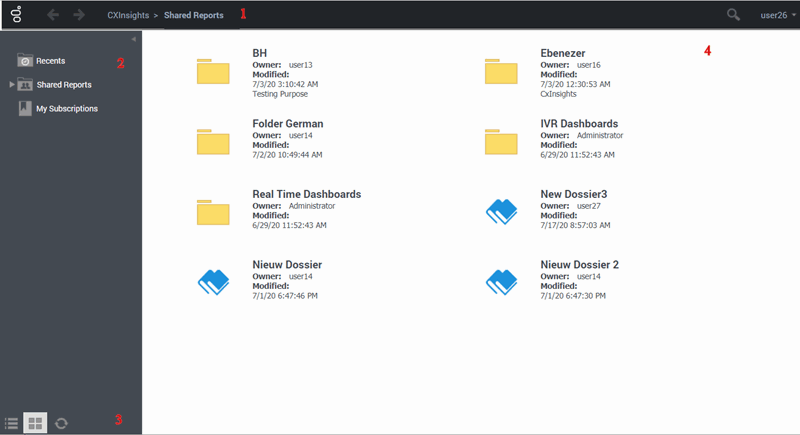
The CX Insights Core user home page consists of several sections. In each section, you can perform specific action related to that section.
-
Application toolbar: Displays options for viewing user profile menu, search, back and forward buttons, and drop-down menu.
-
User profile menu: To explore help about CX Insights and Logout options.
-
Search: To search any dashboard or report by typing the text in the box.
-
Back and forward: Back button to navigate to a previously viewed web page and forward button to navigate to next web page.
-
Drop-down menu: To view projects, home, shared reports, recents, and my subscriptions.
-
Left panel: Displays available options to expand them. Recents, Shared Reports, My Reports, and My Subscriptions appear.
-
Recent: To view dashboards and pages recently opened.
-
Shared Reports: To view all the dashboard folders.
-
My Subscriptions: To view subscribed list of dashboards.
-
Left panel bottom navigation: Displays icons to view list, view icon, and refresh button.
-
View list: To change the view layout of the content in form of a list.
-
View icon: To change the view layout of the content in form of icons.
-
Refresh: To refresh the web page.
-
Content pane: Displays folders and dashboards to work.
Icons
An icon allows you to perform a specific action. The following icons are available on the Home page.
| Icon | Name | Description |
 |
Back | A back button to navigate to a previously viewed web page. |
 |
Forward | A forward button to navigate to next web page. |
 |
View List | Change the view layout of the content in form of a list. |
 |
View Icon | Change the view layout of the content in form of icons. |
 |
Refresh | Refreshes the web page. |
 |
Expand | Expands a section of the Work Form to display its contents. |
 |
Collapse | Collapses a section of the Home page to hide its contents. |