


- Contents
PureConnect for Salesforce
Change your password in PureConnect for Salesforce
If your password has expired, PureConnect for Salesforce prompts you to change your password the next time you log in. Change your password immediately to log on and continue loading PureConnect for Salesforce.
Note: You must have a valid Customer Interaction Center user ID and password to use PureConnect for Salesforce. This is required even if you use your Windows ID and password or other acceptable credentials to log in to PureConnect for Salesforce. If you have forgotten your CIC password, contact your CIC administrator. Your CIC administrator can reset your password in Interaction Administrator.
Password Policies
Your CIC administrator creates Password Policies in Interaction Administrator. The password policy that is assigned to you controls how often you must change your CIC password. It also determines minimum password length, how many unique characters are required, whether sequential digits are allowed, how often you can reuse a password and other password restrictions.
If your password is going to expire soon, a prompt appears periodically (usually once per day or on the next logon) asking if you want to change your password now. If you select Yes, then the Change Password dialog box appears.
Note: You must have a valid CIC user ID and password to use the CIC client. This is required even if you use your Windows ID and password or other acceptable credentials to log on to the CIC client. For more information, see Single Sign On.
Tip: You do not need to wait until you are prompted to change your password. You can change your password at any time.
-
From the menu, select Change Password.
-
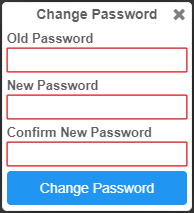
In the Change Password dialog box, do the following:
-
In Old Password, enter your current CIC password.
-
In New Password, enter your new CIC password.
-
In Confirm New Password, type your new password again.
-
-
Click Change Password.