- Contents
Active Directory Accounts with SQL Server Technical Reference
Install the SQL Database
Follow the standard installation instructions for the Microsoft SQL Server 2012 and later. The installation wizard guides you through the process. You can use an existing SQL Server in your environment as long as your database server meets the minimum requirements for the SQL Server for CIC. Refer to http://testlab.genesys.com/ for information about requirements for SQL Server.
Note:
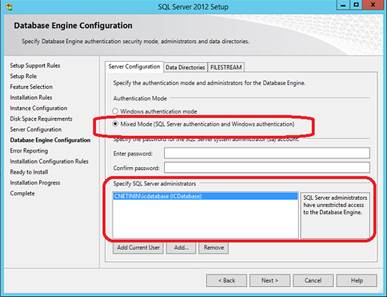
• When the wizard asks you to provide account information to use for the
service account, enter the Domain\ICDatabase account.
• For a standard SQL installation, locate the SQL Server application and
the related files on the first or Operating System partition (C:)
with the database files on the second partition (D:).
• During the initial database setup, verify that the installation allows
both SQL and Windows Authentication. In a later stage, you can disable
SQL Authentication.
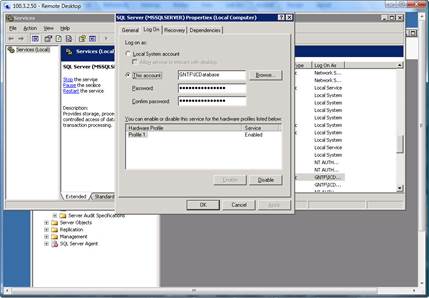
• After you complete the database install, verify the database service
account by using the Services Control Panel in Windows. To determine that
SQL Server is running under the Domain\ICDatabase account, display
the properties for the MSSQLServer process as shown in the following example: