

- Contents
CX Insights Installation and Configuration Guide
Test the CX Insights installation
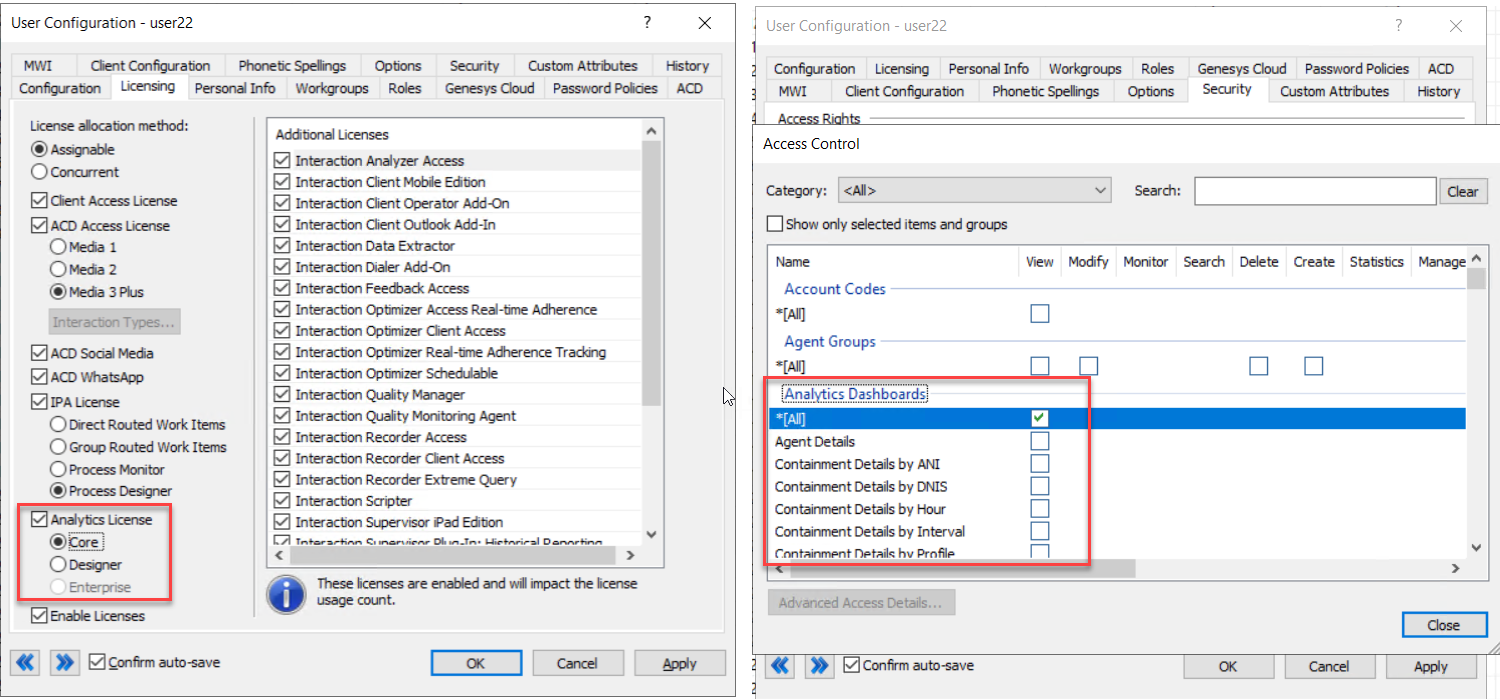
After you complete the initial configuration and user access, test the CX Insights installation by opening a CX Insights dashboard.
To access a dashboard,
-
Log in to CX Insights. You can use the same login credentials that you use for PureConnect.
-
Click the CX Insights folder.
-
Select IVR Dashboards or Real Time Dashboards. Both these dashboards offer a range of metrics presented in different views.
-
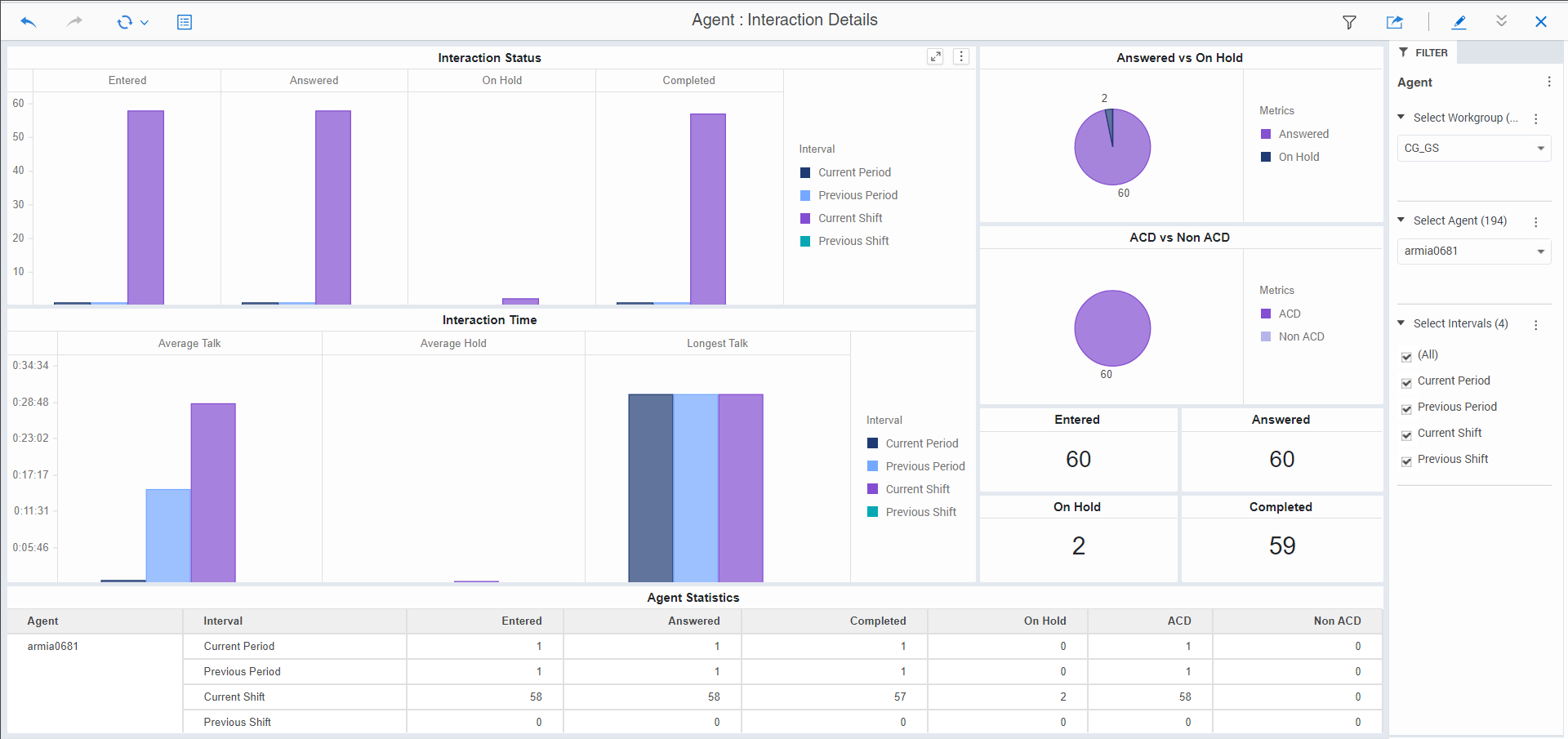
Select the dashboard you want to explore. For example, the following image shows the Agent Details dashboard.
Note!
- You can only view the dashboards for which you have access permissions defined in the CIC server.
- After successful loading, the Real Time dashboards refresh every 30 seconds with real-time statistic values.
The dashboards you can view depends on the Analytics license type (Designer/Core) you are assigned and the access permissions to view.