Setup CCS Switchover
Interaction Dialer provides failover support for CCS servers. Keep in
mind that when CCS switchover is used, it might not be practical for the
DBMS to reside on the CCS server.
To install components used by CCS Switchover, perform the procedure
below after installing Dialer 2018 R4 on both CCS servers that you wish
to use as the switchover pair.
Note: For CCS switchover to work properly, ports
3952 and 3633 must be open on the firewall on both the Primary and Backup
CCS.
Note: The Primary CCS and the Backup CCS must have
the same time zone setting in Microsoft Windows. Because the evaluation
of time zone sets, campaign schedules, and time-based rules occurs on
the CCS, it is important that the times match to allow consistency between
the Primary and Backup CCS.
Launch the CCS Switchover Setup Assistant
The screen caps in this procedure are out of date and will be replaced
in a future update.
At a Central Campaign Server:
-
On the Start menu, access Programs > Interactive
Intelligence and select the CCS Switchover Setup Assistant
shortcut.
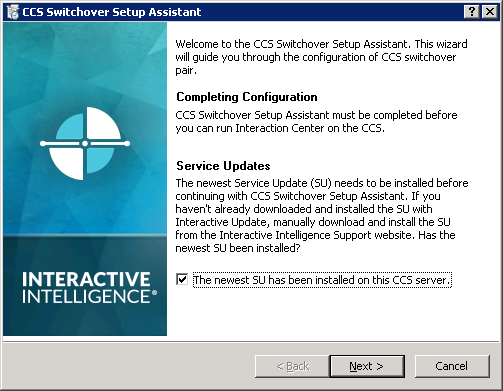
Select the check the box to confirm that the newest SU has
been installed and click Next.
|
|
-
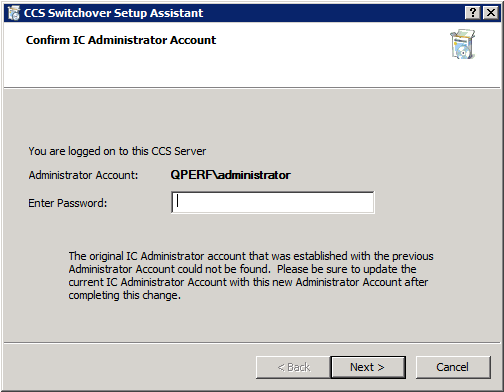
Enter the password for the IC Server Administrator account
and click Next.
|
|
Configure the Primary CCS
At the Primary CCS:
-
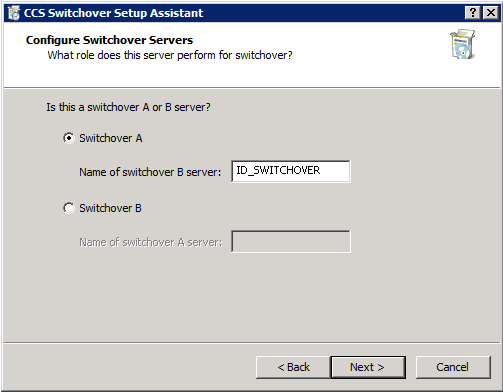
Select Switchover A, enter the name of the Backup
CSS, and click Next.
|
|
-
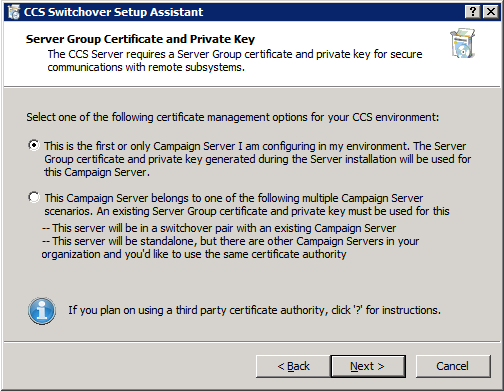
Select This is the first or only Campaign Server
I am configuring for my environment and click Next.
|
|
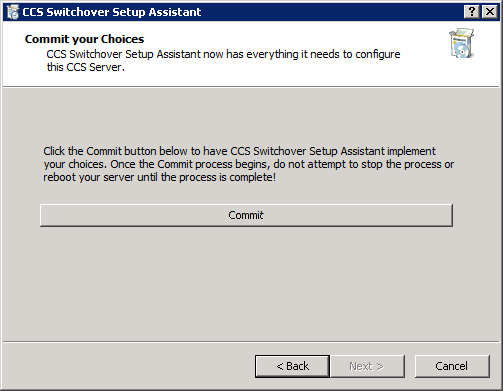
-
When you are ready, click Commit.
At this point, the Setup Assistant will begin a three-stage
procedure that involves updating IC Components, updating the
Server Group Certificate and Private Key, and renaming the
Directory Services tree.
|
|
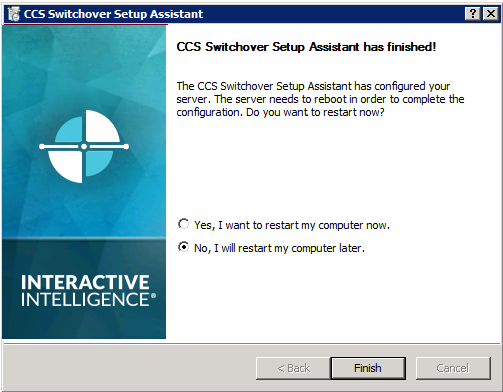
-
Wait until the process is complete and then select No,
I will restart my computer later.
Note: It is important
that you do NOT restart the Primary CCS at this point! |
|
Configuring the Backup CCS
At the Backup CCS:
-
Repeat steps 1 & 2 in the Launching CCS Switchover
Setup Assistant section above.
|
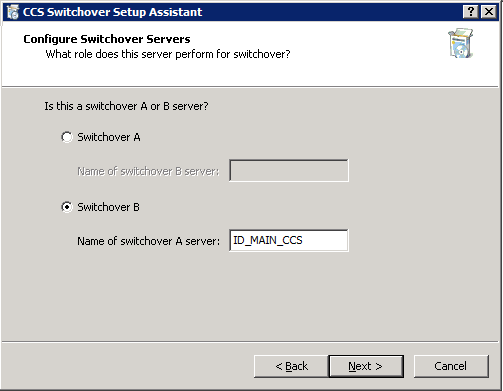
-
Select Switchover B, enter the name of the Primary
CSS, and click Next.
|
|
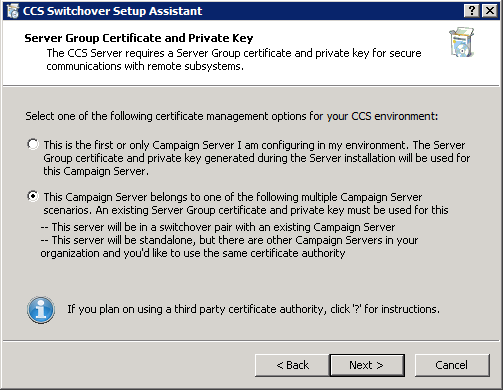
-
Select This Campaign Server belongs to one of the
following multiple Campaign Server scenarios and click
Next.
|
|
-
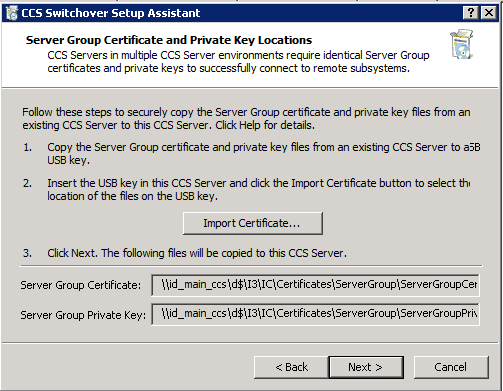
Click the Import Certificate button.
|
|
-
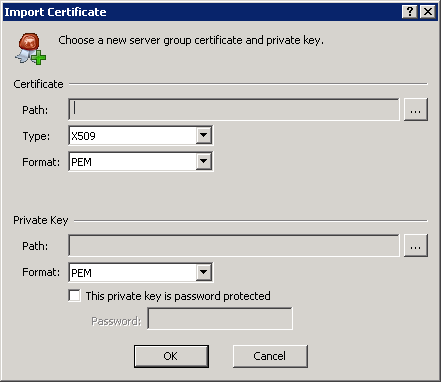
Use the browse buttons on the Import Certificate dialog
box to access and select the following directories and files
on the Primary CCS Server:
Certificate
...\I3\IC\Certficates\ServerGroup\ ServerGroupCertificate.cer
Private Key
...\I3\IC\Certficates\ServerGroup\ ServerGroupPrivateKey.bin
Click OK to continue.
|
|
-
When you return to the previous page, you will see that
the Server Group Certificate and Server Group Private Key
fields are filled in and can click Next.
|
|
-
When you are ready, click Commit.
At this point, the Setup Assistant will begin three-stage procedure
that involves updating IC Components, updating the Server
Group Certificate and Private Key, and renaming the Directory
Services tree.
|
|
-
Wait until the process is complete and then select No,
I will restart my computer later.
Note: It is important
that you do NOT restart the Backup CCS at this point! |
|
Restart and verify
You'll restart the Primary CCS. Then you'll restart the Backup CCS.
|
At the Primary CCS:
-
Restart the server.
-
Launch Interaction Center.
Make sure the Primary CCS has fully started before going to
next step.
|
|
At the Backup
CCS:
-
Restart the server.
-
Launch Interaction Center.
Make sure the Backup CCS has fully started before going to
next step.
|
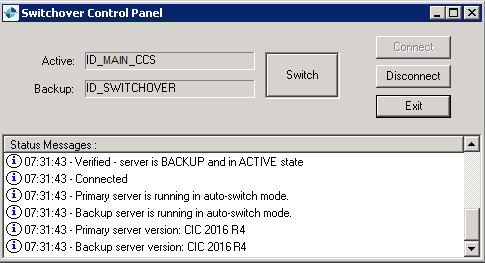
- Once primary and backup CCS's have fully started, launch
the Switchover Control Panel on either the Primary CCS or
the Backup CCS and check the Status Message panel to verify
that the switchover is working correctly.
When you are satisfied that everything is working correctly,
click Exit.
Note: CCS switchover’s underlying implementation points
to CIC switchover’s. Hence CCS switchover will show the latest
CIC version when the installed Dialer version was released.
|
|
Verify your configuration
At the ODS:
-
Launch Interaction Administrator.
-
Locate and select the Server Parameter container.
-
Verify that the Dialer Campaign Server Backup parameter
appears and that its value contains the name of your Backup
CCS.
|
|

Tip: It is important that you document the
name of the Primary CCS. Should you decide to deactivate the CCS
switchover pair at a later date, you'll need to know which server
was originally set up as the Primary CCS. |


