


- Contents
Interactive Update Technical Reference
Create and manage update directories
-
Select or create an update directory on the local provider (CIC server) or another network location.
-
Open the Interactive Update Provider Settings ->Updates page.
-
Click the Action drop-down list, select Add New Update, and then click the white and blue arrow [
 ] to the side.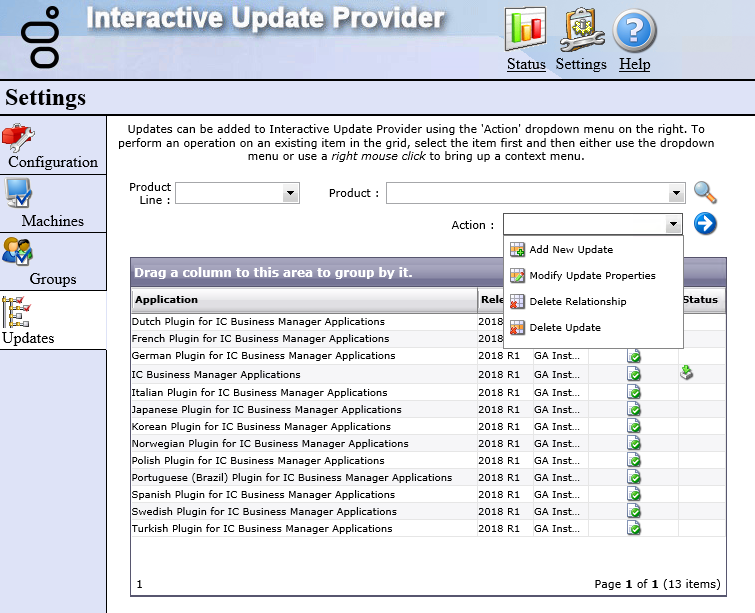
-
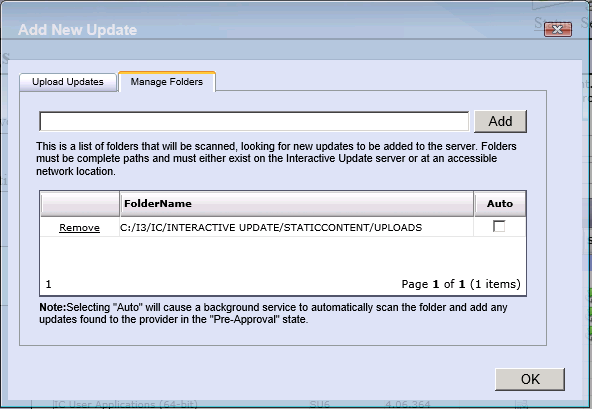
In the Manage Folders tab, type the update directory path in the top field and click Add.
-
Verify the update directory location in the bottom field and click OK.
-
As needed, create update directories or remove existing update directories in the Manage Folders tab.
Note:
If you want to automatically add updates to the local provider, select the Auto option. For more information, see
Add new updates (automatic)
.