


- Contents
Interaction Media Server Technical Reference
Delete an Interaction Media Server From CIC
To delete an Interaction Media Server from CIC
-
From a personal computer or the Interaction Media Server itself, open a web browser and navigate to the URL address and port number of the Interaction Media Server web interface. See the following example for the format of specifying this URL address:
http://mediaserver1.mydomain.com:8084/
Note:
Packaged Interaction Media Servers use HTTP port 8083. Software-only installations of Interaction Media Server default to HTTP port 8084.
-
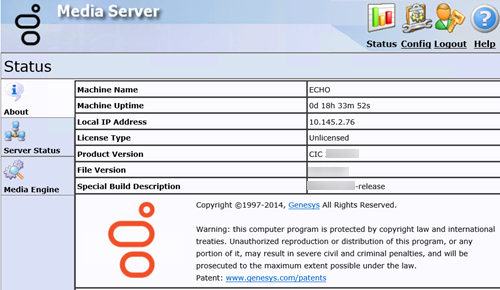
Log on to the Interaction Media Server configuration webpage with the administrative user ID and password. The Status-About page appears.
-
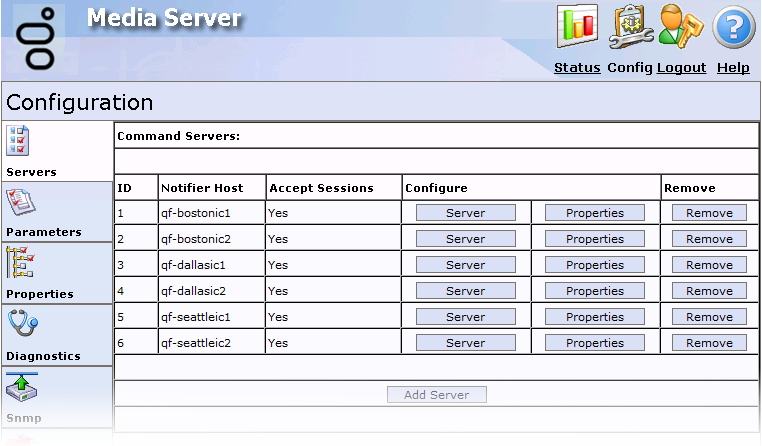
In the upper right corner, click the Config icon. The Config-Servers page appears.
-
Locate the CIC server from which to remove this Interaction Media Server and click the associated Remove button. The system removes the selected CIC server from the Interaction Media Server configuration.
-
Click the Logout icon in the upper right corner and close the web browser.
-
From a personal computer or the CIC server itself, open Interaction Administrator and log on with the administrative ID and password.
-
In the left pane under the System Configuration container, expand the Media Servers container and then click the Servers object.
-
In the right pane, locate the Interaction Media Server to remove from this CIC server, right-click it, and then click Delete.
The system removes the selected Interaction Media Server from this CIC server.
Caution!
If you are running Interaction Recorder Remote Content Service or an off-host Session Manager server on Interaction Media Server, do not complete the remaining steps in this procedure. Completion of these steps results in the deletion of the certificates that those systems use to connect to the CIC server.
-
In the left pane, click the System Configuration container.
-
In the right pane, double-click the Configuration item. The System Configuration dialog box appears.
-
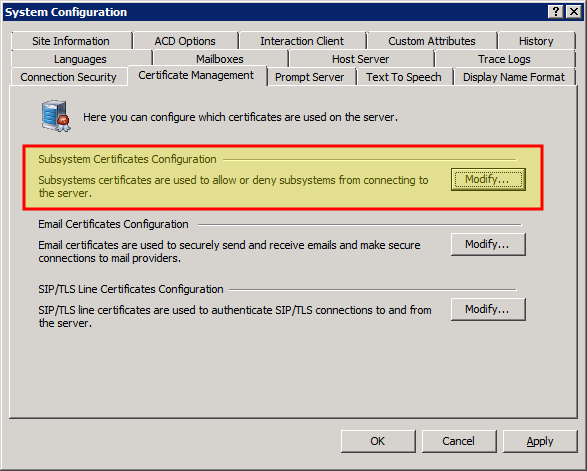
Click the Certificate Management tab. The Certificate Management tab appears.
-
In the Subsystem Certificates Configuration area, click Modify. The Subsystem Certificates dialog box appears.
-
Click the Interaction Media Server entry to remove and then click Delete.
Note:
If you are using a pair of CIC servers in a switchover configuration, you see two certificates; one for each server. Delete both of these certificates.
-
Click Close.
-
In the System Configuration dialog box, click OK. The selected Interaction Media Server no longer appears in Interaction Administrator.