


- Contents
Interaction ScriptAssist for Oracle Service Cloud Technical Reference
ScriptAssist start page
The first time you start ScriptAssist, you see the start page.
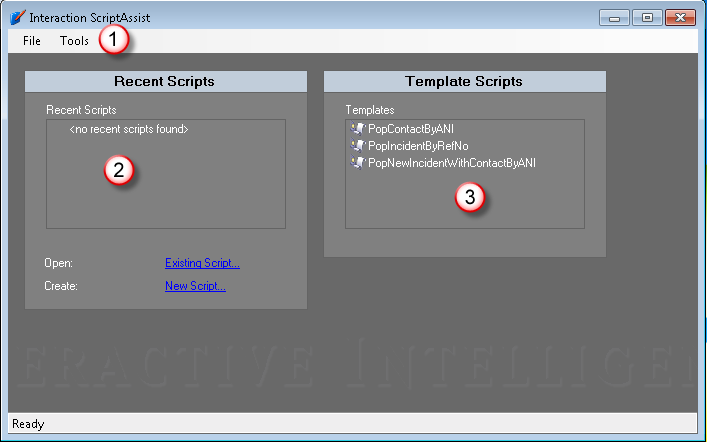
Basic page elements
- The menu bar (1):
-
On the File menu, you can create new scripts, open existing scripts on your server, import a script from an XML file, and do related tasks. On the Tools menu, you can configure your copy of ScriptAssist to work with your IC server and set other options.
- The Recent Scripts section (2):
-
This shows a list of recently used scripts on your IC server. In the figure above, this area is blank because when you start ScriptAssist for the first time, you have not yet created any scripts.
- The Template Scripts section (3):
-
This shows a list of templates used to create scripts for common tasks. The ScriptAssist package includes these scripts.
Template scripts
ScriptAssist comes with several bundled script templates. You can use these templates as a starting point and then modify them for your own specific needs:
- PopContactByANI:
-
This template creates a script that searches the server for a contact record and then opens the record for editing.
- PopIncidentByRefNo:
-
This template creates a script that searches the server for a specific incident record and then opens the record for editing.
- PopNewIncidentWithContactByANI:
-
This template creates a script that searches the server for a specific contact record and then creates an incident based on the record.
Edit a script
Following are the basic options for editing a script:
-
On the right of the screen is a box called Template Scripts. To create a script starting with a template. For more information, see Use the templates.
-
Below the Recent Scripts section is a link to open an Existing Script. Existing Scripts are XML files on the network. You will browse to the location of those scripts. For more information, see Use existing scripts.
-
Below the Recent Scripts is a link to create a New Script. This is used when you want to create a script from scratch. For more information see Create a new script.
-
Another option is to use the File menu and select Open Server Script. This will cause a connection to the server. For more information, see Open a server script.
Note:
When ScriptAssist starts, it checks to see if the Oracle Service Cloud
client is installed on your computer. In particular, it looks in your
%appdata%\RightNow_Technologies\<name
of your site>. In this folder, the Oracle Service Cloud
client installs files needed for ScriptAssist to work properly. ScriptAssist
will not work unless you previously installed and set up the Oracle Service
Cloud client on your computer.