


- Contents
Genesys Cloud for PureConnect Administrator's Guide
Configure Genesys Cloud for PureConnect
When you configure Genesys Cloud for PureConnect in Interaction Administrator, you accomplish these tasks:
-
Enter administrator and organization information needed for connection to an existing organization.
-
Install Genesys Cloud Bridge to sync user data.
To configure Genesys Cloud for PureConnect
-
Review Requirements, including the CIC user configuration requirements.
-
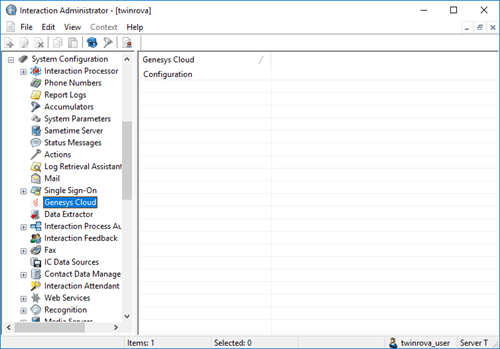
In Interaction Administrator, open System Configuration > Genesys Cloud.
-
On the right side, double-click Configuration.
-
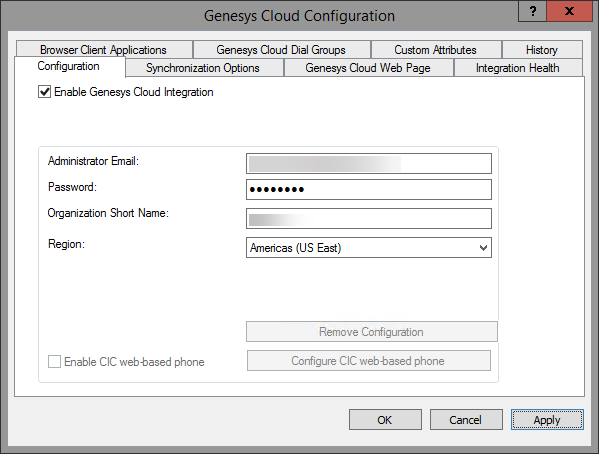
In the Genesys Cloud Configuration tab, select the Enable Genesys Cloud Integration check box.
A message prompts to confirm that you understand that CIC user information will be synced to a paired Genesys Cloud organization. Click Yes to proceed. The configuration fields in the Genesys Cloud Configuration tab are enabled.
Note: Click No if you want to configure more CIC user information before configuring Genesys Cloud for PureConnect. Or click No if you do not want to configure Genesys Cloud for PureConnect now.
-
Enter the Genesys Cloud organization administrator email address, password, and Genesys Cloud organization short name. Select a region.
-
-
In the Administrator Email box, type the email address for the Genesys Cloud organization administrator.
Tip: We recommend giving the administrator an administrative or IT-related distribution email address, instead of a personal email address.
-
In the Password box, type the Genesys Cloud organization administrator’s password.
-
In the Organization Short Name box, type the short name for the existing Genesys Cloud organization.
Note: User information syncs to this organization. If you are unsure of the organization short name, log in to Genesys Cloud and navigate to Admin>Account Settings>Organization Settings.
-
In the Region list, select the closest region to your organization's location.
Note: The default is North America. User access to Genesys Cloud routes to the location of the Amazon data center for this region, whether users are in the office, at home, or traveling.
-
-
In the Genesys Cloud Configuration tab, click Apply.
-
A message prompts you to confirm that you want to proceed to provision the organization. Click Yes to populate the Genesys Cloud organization with your CIC users.
-
A message confirms that the Genesys Cloud integration was successfully configured. Click OK.
-
A message confirms the successful connection to Genesys Cloud.
Note: If the Genesys Cloud Connection fails, try to log on to your Genesys Cloud organization manually using https://login.mypurecloud.com. (The address is different for regions outside North America East.) If you can log on successfully, then the root cause of the problem may lie with the CIC to Genesys Cloud SSO trust. If that is the case, you can reprovision the integration by disabling and then re-enabling the integration. For more information, see How do I reprovision the Genesys Cloud for PureConnect Integration.