


- Contents
Interaction Recorder Technical Reference
Configuring Interaction Screen Recorder
Use the Screen Recording Configuration dialog to set the capture settings for Interaction Screen Recorder.
From the Interaction Administrator tree view, in the Interaction Recorder container, select Screen Recording. In the right pane, double-click Configuration. The Screen Recording Configuration dialog is displayed.
Note
Maximum Supported Screen Recorder Resolution is 1080p.
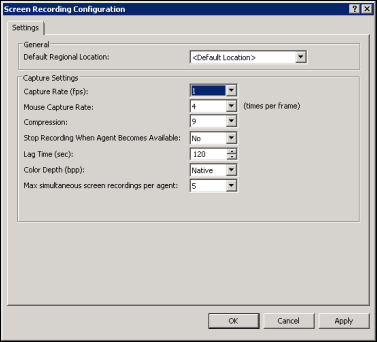
Use the Settings page to configure Screen Recording.
General box
Use the General box to set the Default Regional Location.
Default Regional Location
From the drop-down list, select the location for which region screen recordings will use if Interaction Recorder cannot determine the region based on the interaction or station.
Capture Settings box
Use the Capture Settings box to configure the settings for Screen Recording.
Capture Rate (fps)
Use the drop-down list to select the capture rate in frames per second
(fps). The default is 1 fps. The available values are: 0.25, 0.5, 1, 2,
4, or 8 fps. Refer to the following chart for Capture Rate Settings.
|
Capture Rate Settings |
|
|
Setting |
Equals |
|
0.25 |
1 frame every 4 seconds |
|
0.5 |
1 frame every 2 seconds |
|
1 |
1 frame per second |
|
2 |
2 frames per second |
|
4 |
4 frames per second |
|
8 |
8 frames per second |
The higher the setting the more storage used.
Mouse Capture Rate
Use the drop-down list to select the mouse capture rate in times per frame. The default is 4. The available values are: 1, 2, 4, 8, or 16.
Compression
Use the drop-down list to select the compression rate. The default is set to 9. The available options are any integer from 0-no compression, to 9-maximum compression.
Stop Recording When Agent Becomes Available
Configure this setting to control the recording of an agent’s screen. Set the value to Yes to stop the recording when the agent becomes available. When the value is set to Yes the recording stops even if the agent is in lag time.
If the value is set to No, the recording continues when the agent becomes available; the number of seconds the recording continues is set by Lag Time.
Lag Time (sec)
Use this box to set the lag time, in seconds, at the end of an interaction for screen recording. The Interaction Recorder Server terminates a screen recording when the lag time expires. The default is 120 seconds (2 minutes). The available options are any integer from 0 to 3600 seconds (60 minutes).
Note
As a result of internal batch processing, your agents might experience
up to an additional 10 seconds of lag time during screen recordings. For
example, if you set the lag time to be 15 seconds your agents might experience
a lag time from between 15 seconds to 25 seconds during screen recordings.
Color Depth (bpp)
Use the drop-down list to set the color depth in bits per pixel (bpp). The default is set to Native. The available options are: Native, 8, 16, and 24 bit.
Max simultaneous screen recordings per agent
Use the drop-down list to set the value for the maximum number of simultaneous screen recordings per Interaction Screen Recorder Capture Client. When the maximum limit is reached, every new screen recording stops the oldest one in progress.