


- Contents
PureConnect Reporting Technical Reference
Customization Requirements for Crystal Reports
Crystal Reports Runtime, for viewing standard, prepackaged reports generated from CIC, is installed when running the IC Business Manager Applications install when Interaction Supervisor is selected. If you want to edit, customize, or create new reports, you must purchase the full Crystal Reports software package.
Note
If you want to use Crystal Reports to make customizations to CIC reports,
you will need the DLL file U2LININSUPPORTU.DLL. This DLL is installed
on any workstation where you run the IC Business Manager Applications
install with Interaction Supervisor selected. This file must be accessible
to Crystal Reports to do your customizations. Put the DLL in the %CommonProgramFiles%\Crystal
Decisions\xxx\bin, where xxx will vary depending on the version of Crystal
Reports used. For example, if using CR9.0, xxx will equal 2.0. Our install
program automatically installs the file in this path, so no additional
steps need to be taken, except expanding the path. If, for example, you
are using CR10.0, xxx will equal 2.5, and you will need to copy the file
into the directory.
For more information about the functions contained in U2LININSUPPORTU.DLL,
see Appendix
H.
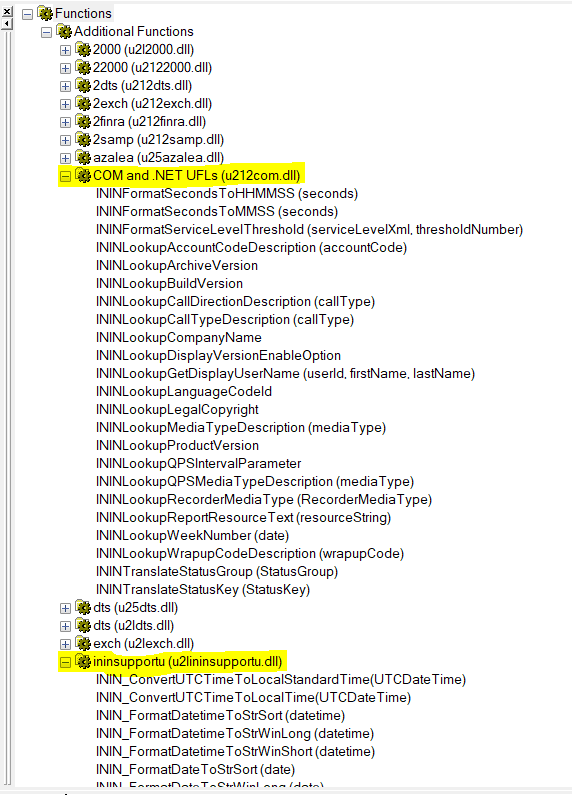
The User need to copy u212com.dll, ININ.Reporting.Historical.Engine.CrystalUFL.dll and U2LININSupportU.dll to the following folders:
C:\Program Files (x86)\SAP BusinessObjects\Crystal Reports for .NET Framework 4.0\Common\SAP BusinessObjects Enterprise XI 4.0\win32_x86
C:\Program Files (x86)\SAP BusinessObjects\SAP BusinessObjects Enterprise XI 4.0\win32_x86
C:\Program Files (x86)\Common Files\Crystal Decisions\2.0\bin
The files are by default copied by the ICBM installer in the first folder, but not in the last two folders. The last two folders are actually searched by Crystal Reports Designer to load the functions in the Formula window. Since CR Designer searches only the last two folders, it does not load the functions if dll files missing in those two folders..
u212com.dll file is a Crystal report runtime file, ININ.Reporting.Historical.Engine.CrystalUFL.dll and U2LININSupportU.dll are CIC files and any specific CIC version installer will contain these files. These files can also be copied from the first folders to the other two folders manually (administrator privilege required).
Crystal Reports version compatibility
If you are using another software package, which uses a Crystal Reports
install that accompanies the software, for example, Aspect eWRFm, it could
cause IC Business Manager reports to fail on that machine. This is due
to a Crystal Reports limitation and cannot be corrected by Genesys. Crystal
Reports has the following documentation that describes their limitations
on this issue, "Can
we install multiple versions of Crystal Reports on the same computer?"
https://apps.support.sap.com/support/knowledge/public/en/1216278
Note
Our reporting system uses Crystal Reports
2013. As a result, any Crystal Reports versions listed in the above referenced
article that conflict with Crystal Reports 2013 will cause issues when
running reports in IC Business Manager.