


- Contents
CIC Integration with SAP CRM Installation and Configuration Guide
Install the SAP Integration Service
Install the SAP Integration Service on the integration server using the configuration utility wizard. This section walks you through each step.
-
Run SAPICIIntegration.msi.
The installation wizard opens.
-
Click Next.
The Custom Setup step appears. Custom Setup sets the default location to C:\Program Files\Interactive Intelligence\SAP\IC Integration with ICI. If other CIC components are already installed on the current machine, the installation program automatically adjusts to the existing installation drive and location.
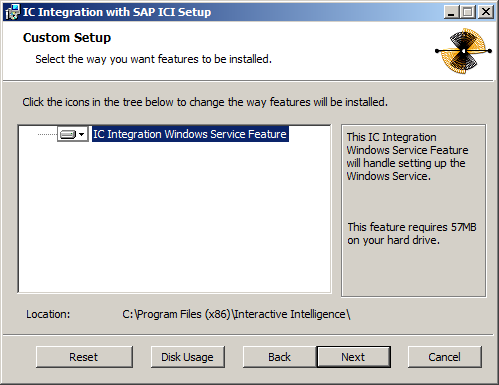
Note: Do not change the default location in the Custom Setup dialog. This location ensures the application starts on a 32-bit process.
-
Click Next.
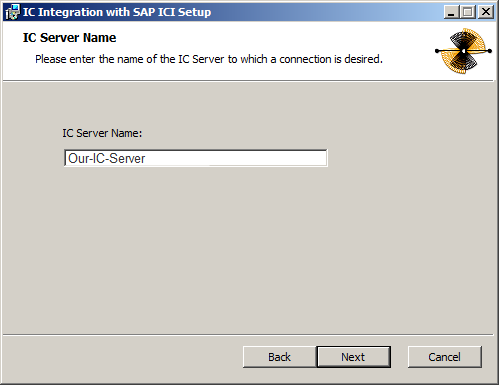
The IC Server Name step appears.
-
Type the CIC Server Name for the integration and click Next.
-
The Ready to install SAP Integration Service dialog appears.
-
Click Install.
The installer displays a status bar and messages as the installation progresses. When finished, the Completed the SAP Integration Service Setup Wizard dialog appears.
-
Click Finish.
-
If prompted, restart the server to complete the installation process.