


- Contents
CIC Integration with SAP CRM Installation and Configuration Guide
Test the SAP Integration Web Connector
Once you install the web connector, test the service inside IIS. Also, since the supported versions of Microsoft Windows Server are 64-bit operating systems, manually configure IIS to support the 32-bit Web service. For more information about the installation, see Install SAP Integration Web Connector.
-
Open IIS Manager.
-
In the Advanced Settings for the default application pool, set Enable 32-bit Applications to True.
-
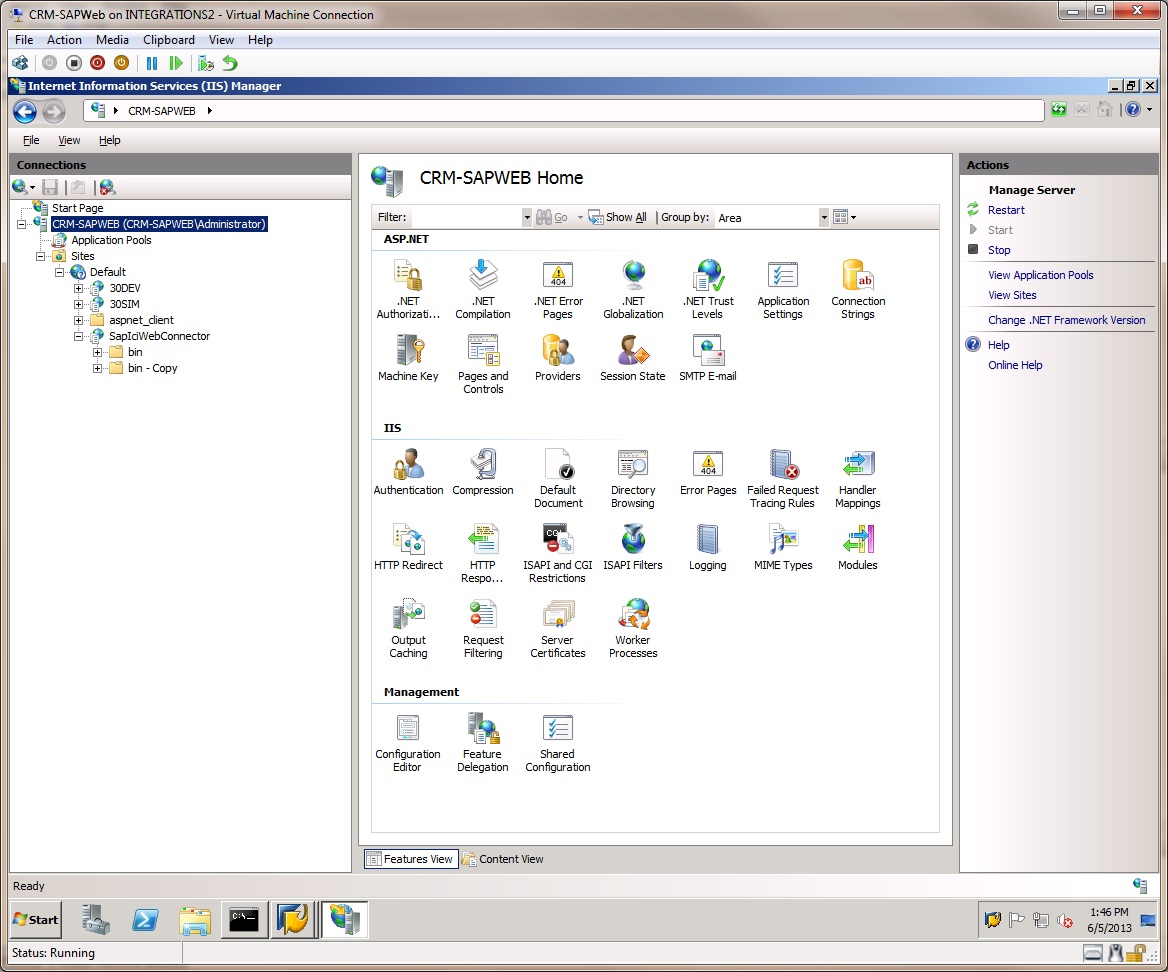
Under the default website, navigate to the SapIciWebConnector folder.
-
Right-click the SapIciWebConnector folder and select Properties.
Verify the web service installation in IIS and check that you can display its properties.
-
Close IIS Manager and open a web browser.
-
To test the web connector, type the URL in the Address field type the URL http://localhost/SapIciWebConnector/IcSapWebService.asmx and click Enter.
Note: The default port is 80. The Default Web Site SapIciWebConnector lists the web application for the web service.
The Web Service page opens.
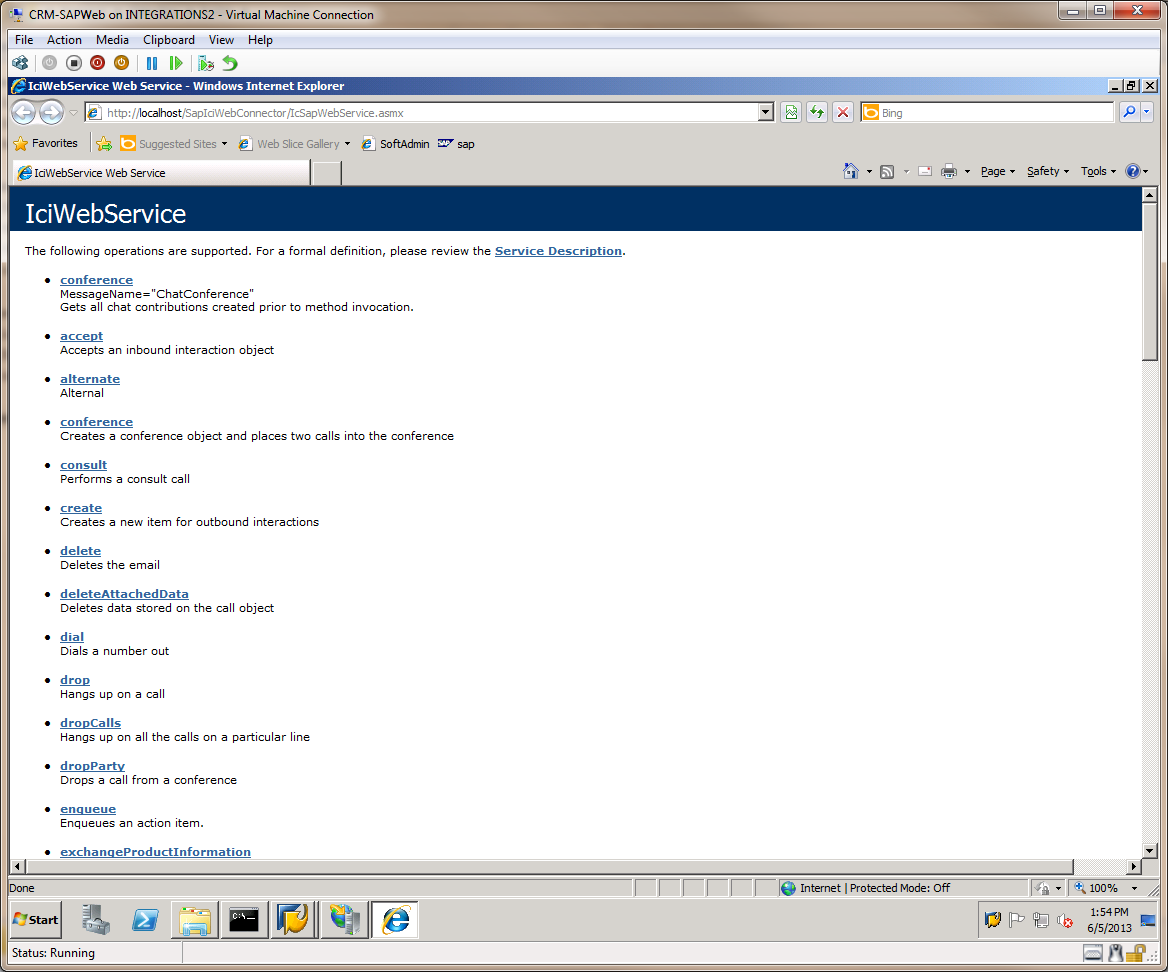
Note: If this page does not display, confirm the IIS settings before contacting a customer service representative.