

- Contents
Importing the Signed Certificate and Root CA Certificate into the Windows Certificate Store
Importing Root CA
Now you will import the Root CA (Trusted Certificate Authority) Certificate into the local server’s Windows Certificate Store.
-
Navigate to the D:\I3\IC\Certitifcates\CSR directory and locate the Root CA Certificate you have copied from CA.
-
Double Click on the file.
-
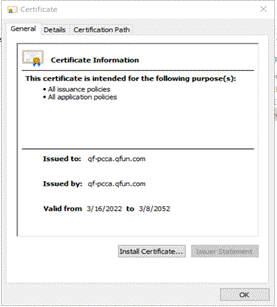
Select Install Certificate... from the Certificate.
-
A new window appears, select Local Machine radio button and click Next.

-
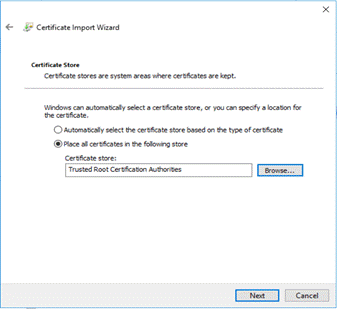
Select Place all certificates in the following store and select Trusted Root Certification Authorities from the list.
-
Click Next.
-
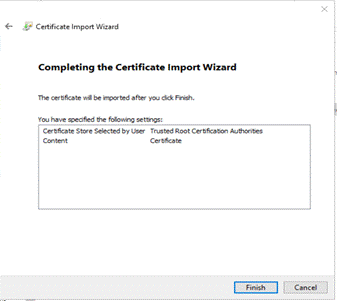
Completing the Import, verify that you have imported the correct Certificate and select Finish.
-
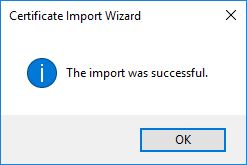
After the successful import, select OK to close the window.

Importing Signed Certificate
The Signed Certificate has been converted into .pfx, now you will import the Certificate.PFX into the local server’s Windows Certificate Store.
-
Navigate to the D:\I3\IC\Certitifcates\CSR directory and locate the newly created .pfx file that you perform in the previous steps.
-
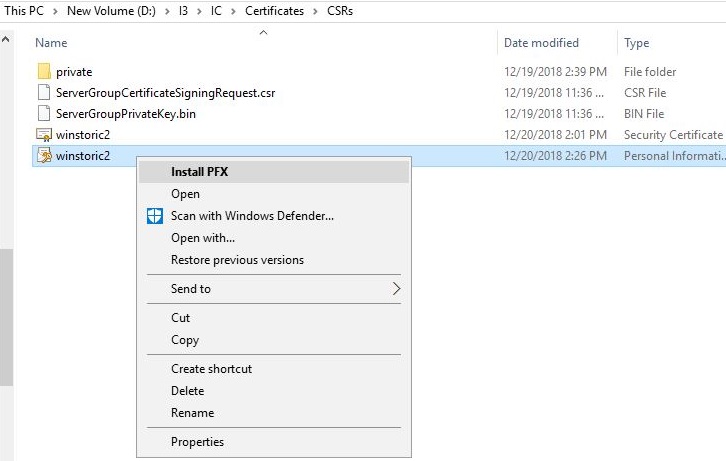
Right click on the file, in our example we right-clicked on the “winstoric2.pfx“ file.
-
Select Install PFX from the menu.
-
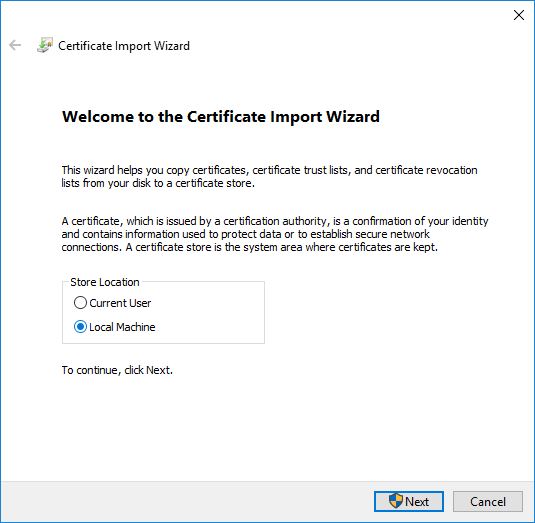
A new window appears, select Local Machine radio button.
-
Click Next.
-
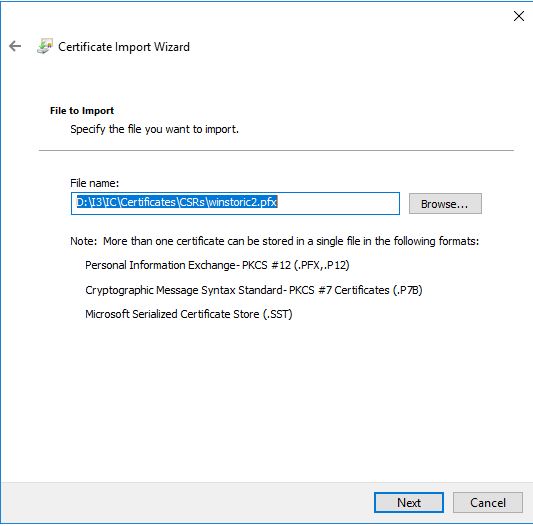
Browse and specify the file you want to import and click Next.
-
Enter the password, which was created in the step 4 of section Converting the Signed Certificate for Importing .

Note: you must mark this certificate as exportable or the PureConnect application cannot use or register with this certificate. Please mark the extended properties checkbox as well.
-
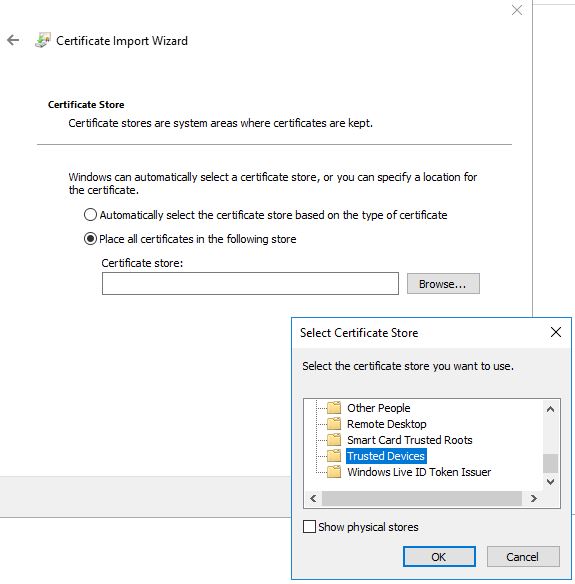
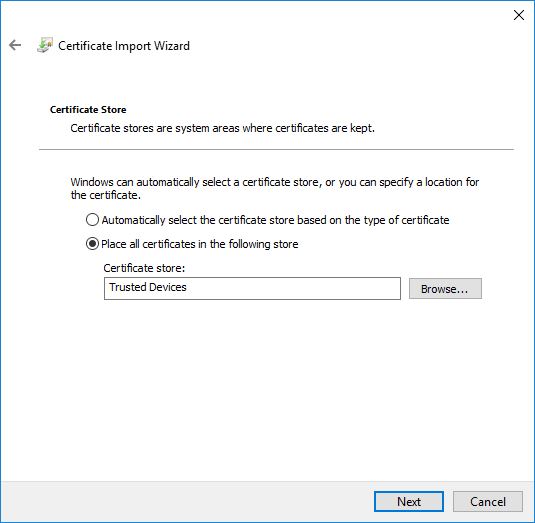
Select Place all certificates in the following store and select Trusted Devices area.
-
Completing the Import, verify that you have imported the correct Certificate and select Finish.

-
Completing the Import, verify that you have imported the correct Certificate and select Finish.