


- Contents
PureConnect Licensing Technical Reference
Activation File Management Tool
The Activation File Management Tool (AFMT) allows customers with a perpetual license to manage and configure their PureConnect product licenses. Subscription customers must request a license from the Genesys Licensing Team. For more information, see Request a License File.
AFMT replaces the License Management System (LMS) for PureConnect products. The following table lists the differences between LMS and AFMT.
|
LMS |
AFMT |
Comment |
|
Summary tab |
Account Summary tab |
|
|
License Activity tab |
Activation File Activity tab |
|
|
New License tab |
New Activation File tab |
|
|
N/A |
Software Details tab |
Provides details about each product. |
|
N/A |
Upgrade Software tab |
Provides ability to upgrade licenses to a newer version. |
|
N/A |
Install Sites tab |
Provides ability to manage install sites. |
|
Snapshot tab |
N/A |
Not migrated to new system. Historical information exists in LMS but not new orders or changes to a customer account that occurred after migration. To see new orders or changes after migration, see the service contract. |
|
CIC and SIP products available in two separate locations. |
CIC and SIP products appear together on all tabs. |
|
|
Licenses based on anniversary date and required re-registration. |
Software licenses are perpetual and have an expiration date of 1/1/2100. |
|
Customers can access the tool on the My Support Dashboard. Partners can access the tool on the Partner portal. You must have the appropriate credentials to access these portals.
Note: You can also use the Genesys Activation File Request Tool to communicate with the Genesys Licensing Team about licensing related issues or to request an activation file. The tool doesn’t require logon credentials.
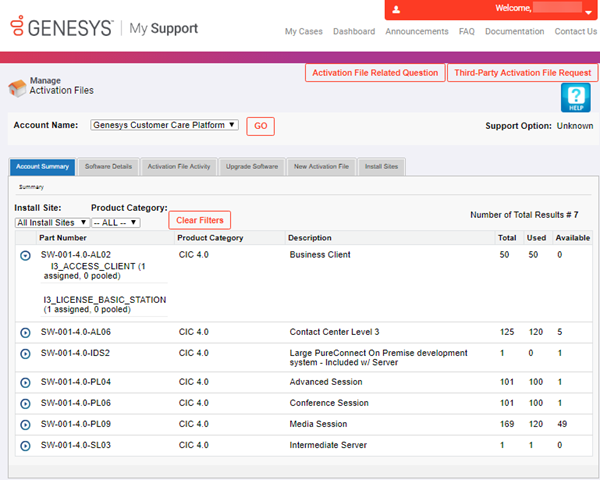
Activation File Related Question: Opens the Activation File Related Question page to allow you to ask a license-related question or request an activation file.
Third-party Activation File Request: Opens the Third-Party Activation File Request page to allow you to submit a third-party license request.
Help: Open the Activation File Management Tool Guide, which provides an overview of the tool.
Account Name: Account for which to view licenses.
Account Summary tab
The Account Summary tab displays all ordered items that are available to license for a specified account. You can generate a license based on any of these items.
Software Details tab
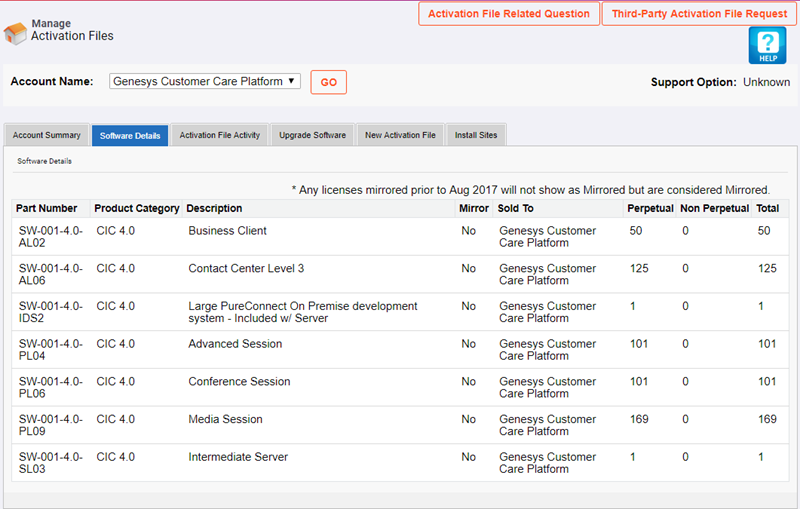
The Software Details tab displays an overview of an account's eligibility to create and download a license file.
Activation File Activity tab
The Activation File Activity tab displays a summary of generated files and the actions available for licenses.

View licenses for an account
Use the filtering options to view active and inactive licenses generated for an account. The following table describes the options available for filtering which licenses to display.
|
Option |
Description |
|
Install Site |
Displays licenses for the specified install site only. All Install Sites displays licenses for all install sites. |
|
Generation Date (>=) |
Displays licenses that you generated on or after the specified date. [Blank] displays licenses regardless of generation date, unless you specify a date in the Generation Date (<=) box. You can use this option with the Generation Date (<=) option to specify a date range. |
|
Generation Date (<=) |
Displays licenses that you generated on or before the specified date. [Blank] displays licenses regardless of generation date, unless you specify a date in the Generation Date (>=) box. You can use this option with the Generation Date (>=) option to specify a date range. |
|
Active |
Yes displays active licenses only. No displays inactive licenses only. All displays active and inactive licenses. |
|
Product Line |
Displays licenses for the specified product line only. All displays licenses for all products. |
|
License Type |
Displays licenses for the specified license type only. All displays licenses for all license types. |
|
Generated By |
Displays licenses that the specified person generated only. [Blank] displays licenses that anyone generated. |
|
Machine Name |
Displays licenses for the specified computer only. [Blank] displays licenses for all computers. |
View license details
Use the View icon  to display the View License page. This page displays detailed information
about a license.
to display the View License page. This page displays detailed information
about a license.

Download a license file
Use the Download icon  to download a license file
to your default download location with a file name extension of "I3Lic.".
IC Setup Assistant and other installations such as Language Packs require
this license file. The system requests it when you install the CIC server
software.
to download a license file
to your default download location with a file name extension of "I3Lic.".
IC Setup Assistant and other installations such as Language Packs require
this license file. The system requests it when you install the CIC server
software.
Update a license
Use the Update icon  to update an existing license to increase the number of stations or lines.
Deactivate a license
Use the Deactivate icon  to
deactivate a license. You can deactivate a license:
to
deactivate a license. You can deactivate a license:
-
If the license generated incorrectly
-
To reallocate the license after an organizational change or after adding a server
When you deactivate a license, the number of lines and workstations are available again for allocation.
Note: PureConnect pools all licenses. When you allocate licenses, allocate them by site.
Upgrade software tab
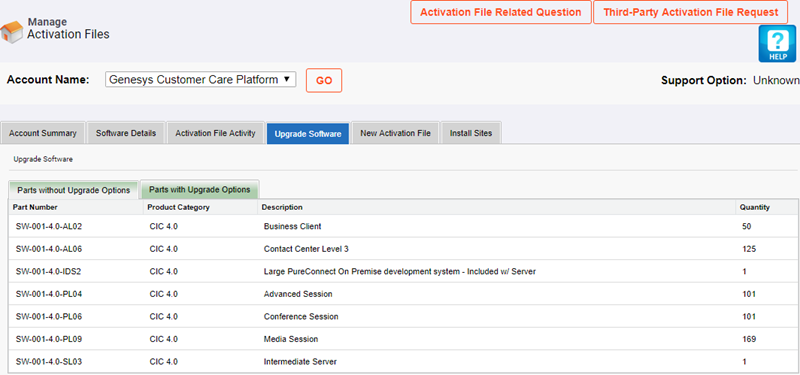
The Upgrade Software tab displays products with and without upgrade options.
Parts without Upgrade Options tab
Parts with Upgrade Options tab
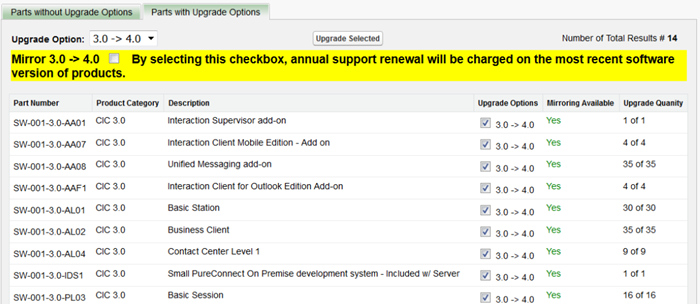
You can select individual products to upgrade. However, if mirroring is available, you must upgrade all products with the upgrade option.
New Activation File tab
The New Activation File tab allows you to generate a new activation file. Trial bundle licenses and add-on bundle licenses are not available in the Activation File Management Tool.

Install Sites tab
The Install Sites tab allows you to view, edit, create, and deactivate install sites.

New Install Site: Opens the Install Site Details dialog box to allow you to create an install site.

Edit: Opens the Install Site Details dialog box in edit mode to allow you to modify an install site. To deactivate an install site, clear the Active check box
