


- Contents
IPA Work Item Client Help
Log on
You log on to IPA Work Item Client without specifying a station.
Note: You cannot log on to IPA Work Item Client and a CIC client at the same time.
-
Point your browser to the logon page.
Tip: Your CIC administrator can supply the URL for the logon page.
-
If your organization uses more than one IC server, in the Choose Your Interaction Center Server dialog box, type the name of the appropriate IC server in the Server text box. Click Choose Server.
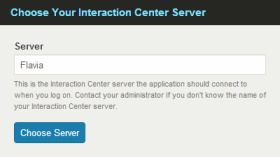
Note: If your organization uses only one IC server, you do not see this dialog box.
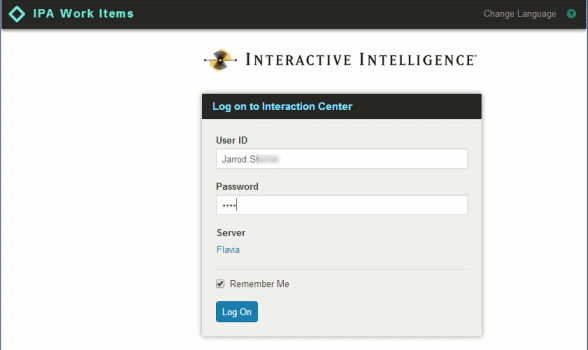
Result: The Log on to Interaction Center dialog box appears.
-
In User ID and Password, enter your CIC user account name and password as configured in Interaction Administrator.
-
Optionally, select the Remember me check box.
Result: The next time you log on, the logon page fields default to the last-used values, except for Password.
Note: If you also use the browser feature that remembers passwords, Password also defaults. Client-side cookies store these settings. If you clear cookies, "Remember me" does not "remember" your logon settings.
Tip: Contact your CIC administrator if you must change your password.
-
Optionally, in the Application bar, click Change Language. In the Language Settings dialog box, select a language for the interface text, and then click Change Language.
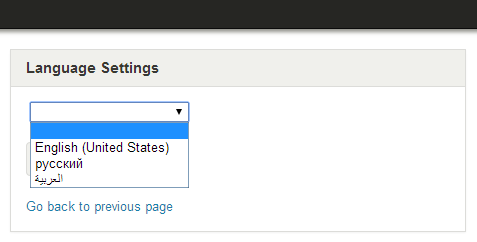
Note: The Language Settings dialog box lists only the language packs installed on your IC server.
Tip: Your browser language setting controls the format used for date, time, currency, and number values.
-
Click Log on.
Result: You log on to Customer Interaction Center. Your CIC user name appears in the IPA Work Item Client Application Bar. Other CIC users can view your user status and logon state in any CIC client Company Directory view.