


- Contents
IPA Work Item Client Help
Transfer a work item
You can transfer a work item to another user or workgroup queue.
Note: Interaction Supervisor users can transfer work items that are not on Hold, if necessary to continue a process. If a supervisor transfers a work item while an agent has that work item open, then any data changed or entered by the agent can be lost.
Licenses and Other Conditions
-
You need the right to transfer an interaction for the queue in which the work item appears.
-
You can transfer work items only to other IPA-licensed users or to a workgroup with at least one IPA-licensed user.
-
If you transfer a work item to a workgroup, the target workgroup must have an associated queue.
-
You can transfer only work items that are in a New, ACD - Wait Agent, or Held state. You cannot transfer a completed work item or a work item you are viewing or revising (In Progress state).
-
In the My Work Items view or the appropriate workgroup queue view, select a work item that is in a New, ACD - Wait Agent, or Held state.
-
Click Transfer.
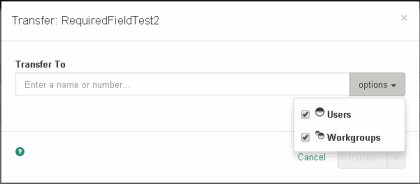
Result: The Transfer dialog box appears.
-
Optionally, from the Options drop-down list, select Users, Workgroups, or both.
Tip: The Options drop-down list limits your search for a transfer recipient to either users or workgroups or both. You cannot transfer a work item to a phone, station, station group, or attendant profile, so these search criteria do not appear.
-
In the Transfer To: text box, type all of part of the recipient’s name or extension number.
Result: A drop-down list of choices appears.
Tip: If the drop-down list does not contain the expected transfer recipient, check the search criteria selected in Options and adjust them if necessary.
-
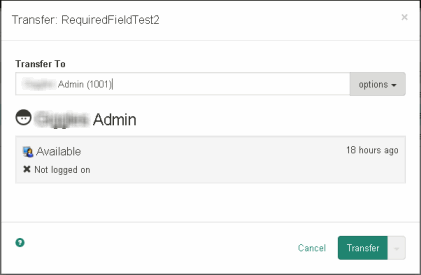
From the drop-down list, select the appropriate recipient.
Result: Status information appears for the selected user or workgroup, including whether a selected user is logged on and is available to accept the transferred work item. If the selected recipient is a workgroup, it shows how many interactions are in the workgroup queue, how many agents are logged on and how many agents are available.
-
Click Transfer.
Result: Customer Interaction Center (CIC) removes the work item from your My Work Items view or workgroup queue where you selected it and routes it to the selected agent or workgroup.
Important: Certain work item settings are no longer in effect after a transfer. For example, a work item’s timeout setting controls how much time an agent has to pick up an alerting work item before CIC routes it to another agent. This time limit no longer applies to a transferred work item because the transfer signals the work item is "being handled" or "under an agent’s control."
Related topics