


- Contents
PureConnect CX Insights Help
File Options
The File menu includes the following commands:
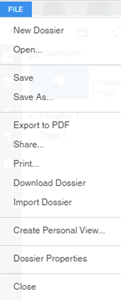
- New Dossier (Dashboard): Allows you to create a new dossier (Dashboard). For more information, see https://www2.microstrategy.com/producthelp/Current/MSTRWeb/WebHelp/Lang_1033/Content/create_dossier.htm
Note: If any dashboard is in-progress at the time you create a new dashboard the application prompts you to save it and then allows you to create new.
- Open: Allows you to open an existing designed dashboard.
- Save: Allows you to save the dashboard. For more information, see https://www2.microstrategy.com/producthelp/Current/MSTRWeb/WebHelp/Lang_1033/Content/Saving_documents.htm
Note: If any dashboard not saved, then the application prompts you to save it.
- Save As...: Allows you to save the dashboard with a different name. For more information, see https://www2.microstrategy.com/producthelp/Current/MSTRWeb/WebHelp/Lang_1033/Content/Saving_documents.htm
Note: Designer user can save the dashboard directly in Shared Reports folder, but not inside the existing subfolders.
- Export to PDF: Allows you to export all chapters and pages in a PDF format using same dashboard name. For more information, see https://www2.microstrategy.com/producthelp/Current/MSTRWeb/WebHelp/Lang_1033/Content/intro_export_dossier.htm
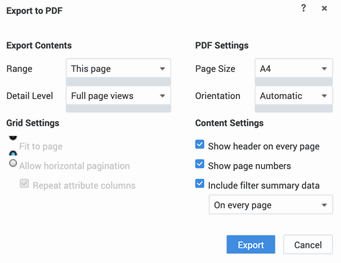
- Export Contents: Allows you to set the content view using range and detail level settings.
- Range: Allows you to set a range for the content by selecting page, chapter, and entire dossier options.
- This page: Allows you to export only selected page.
- This chapter: Allows you to export selected chapter, that includes all pages inside it.
- Entire Dossier (Dashboard): Allows you to export all the chapters and pages.
- Detail Level: Allows you to set content detail view using full page view, each visualization as a page, and both options.
- Full page views: Allows you to view an overview of the selected page or chapter or dossier (dashboard). It will not display the entire portion of the visualization.
- Each visualization as a page: Allows you to export each visualization as a page in the .pdf file. It exports all the details in visualization pane.
- Both: Allows you to view the first page of the .pdf file as an overview of the selected page or chapter or dossier (dashboard), next page contains all the details in the visualization.
- Grid Settings: When each visualization as page or both options selected in detail level selection.
- Fit to page: Fits all content of the visualization into a single page.
- Allow horizontal pagination: Allows you to create new page for the columns.
- Repeat attribute columns: Allows you to show attributes in the new page.
- PDF Settings: Allows you to set page size and orientation for a .pdf file.
- Page Size: Allows you to set the .pdf page size to A4, A3, A5, and so on. By default, A4 selected.
- Orientation: Allows you to set the orientation of the page to be Portrait or Landscape or Automatic. By default, Automatic selected and based on the data it creates either Landscape or Portrait.
- Content Settings: Allows you to set how you want to view the content
- Show header on every page: Displays the header with details of the dossier name at the upper left and visualization name at upper right.
- Show page number: Displays page number at each page of the .pdf file.
- Include filter summary data: Displays selected filters dossier (dashboard) at the top of the page.
- On every Page: Displays filters on each page.
- After every chapter: Displays filters only at the end of each chapter.
- Each page and chapter: Displays filters at each page and dossier (dashboard) level.
6. Share: Allows dossier (Dashboard) to share with other users. You can share the dashboard in two ways either by assigning permissions to the user or sharing the link with the user. For more information, see https://www2.microstrategy.com/producthelp/Current/MSTRWeb/WebHelp/Lang_1033/Content/sharing_dialog_box.htm
Note: Designer user can share the dossier (dashboard) by moving the dashboard from My Reports folder or any folder to Shared Reports folder using Move option at dossier.
- Link: Generates a link for the dashboard and it can be shared with the users.
- Embed: Generates the iframe HTML code, to the embed into the HTML pages. You can use this embed code inside HTML containers of the dashboard.
-
Who Has Access: Designer user can set access levels to other users.
Access Levels: The below listed access levels help you to assign access to the users.
-
View: Allows users can see only the dashboard.
-
Modify: Allows users can edit the dashboard.
-
Full control: Allows users can view/edit and they can also delete the dashboard.
-
Denied all: Users cannot see the dashboards at all.
-
Custom: Allows to set the access levels at each level.
-
Custom Permission Level: At each level Grant, Deny and Default options are available. Based on the selection, users can see the dashboards at different levels.
-
Browse: Allows users to only browse the dashboards on the folder.
-
Read: Allows users to only view the dashboards.
-
Write: Allows users to edit the dashboard and other designer users can update the dashboard
-
Delete: Allows users to delete the dashboard.
-
Control: Allows users to modify the object access control list.
-
Use: Allows users to use the object, while the same object is been modified.
-
Execute: Allows users to run the reports. Selected at the report execution time.
7. Print...: Allows you to print the selected chapter or page from the browser's print settings.
8. Download Dossier (Dashboard): Allows you to download the entire dashboard to the local folder with .mstr extension.
9. Import Dossier: You can import dashboards from the existing folder.
10. Create Personal View: Allows users to set the personalized name for the personal view. By default, all personal views stored under My Subscriptions folder.
11. Dossier (Dashboard) Properties: Allows you to configure dashboard behavior. For more information, see https://www2.microstrategy.com/producthelp/Current/MSTRWeb/WebHelp/Lang_1033/Content/Dossier_Properties_dialog.htm
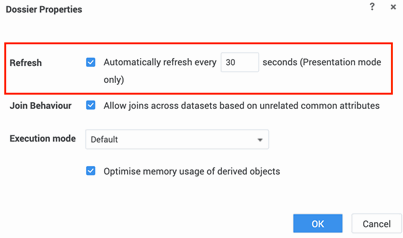
- Refresh: By default, data in the dashboard is not refreshed automatically in the presentation mode. You can specify the data that must be refreshed automatically and can define the frequency to refresh.
- Join Behavior: Allows you to join the datasets based on the unrelated common attributes.
- Execution Mode: Data in a dashboard is automatically set up by default, across all the chapters when you open a dashboard. Select the Load chapters on demand option to reduce the load time when opening a dashboard with a large amount of data.
Data Combination
-
Inherit Value: Inherit relations for joining the attributes from the project-level settings.
-
Use Maximum: Allows you to use maximum relations to join the attributes and get complete data combinations (that is higher disk space usage). The Multiple Cube Engine (MCE) takes grids containing metrics/attributes from different datasets and can join them with different rules. This generates relations to retrieve complete combinations of attributes, including nulls, at the cost of high disk space usage.
-
Use Minimum: Allows you to use minimum relations to join the attributes using binary relations (that is faster, less memory usage). MCE generates less-complete combinations with few attribute relations, resulting in better performance.