

- Contents
PureConnect CX Insights Help
Metric Creation Examples
Number of Entered Metric
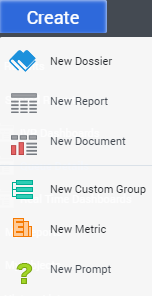
- Click Create button and click New Metric button to create a metric.
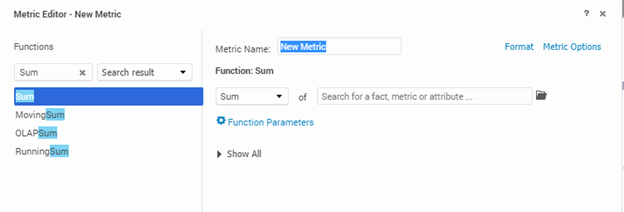
- It will open the Metric editor window.
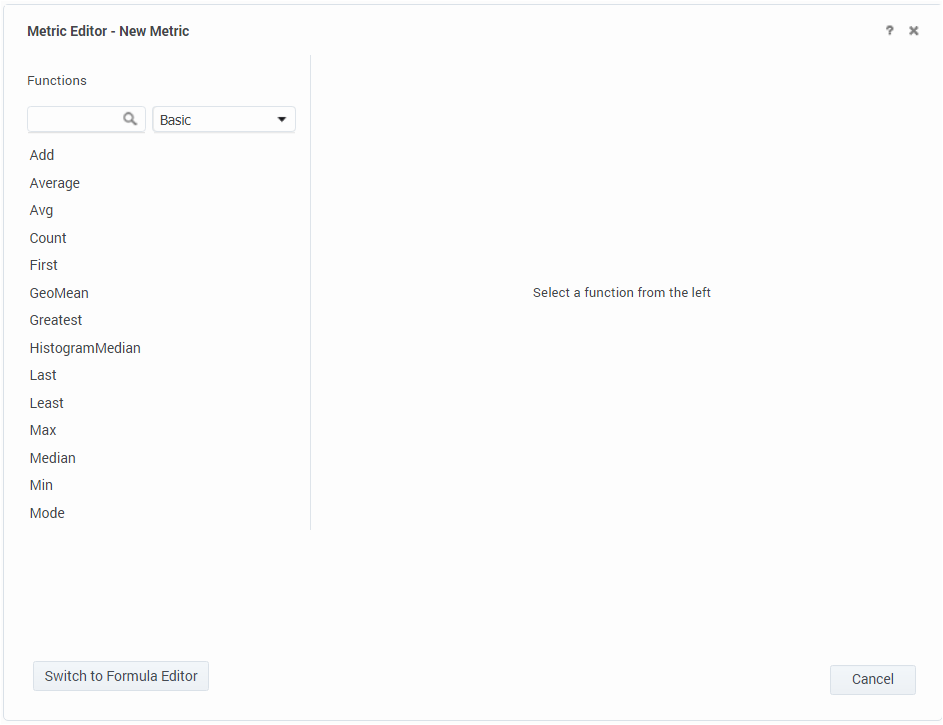
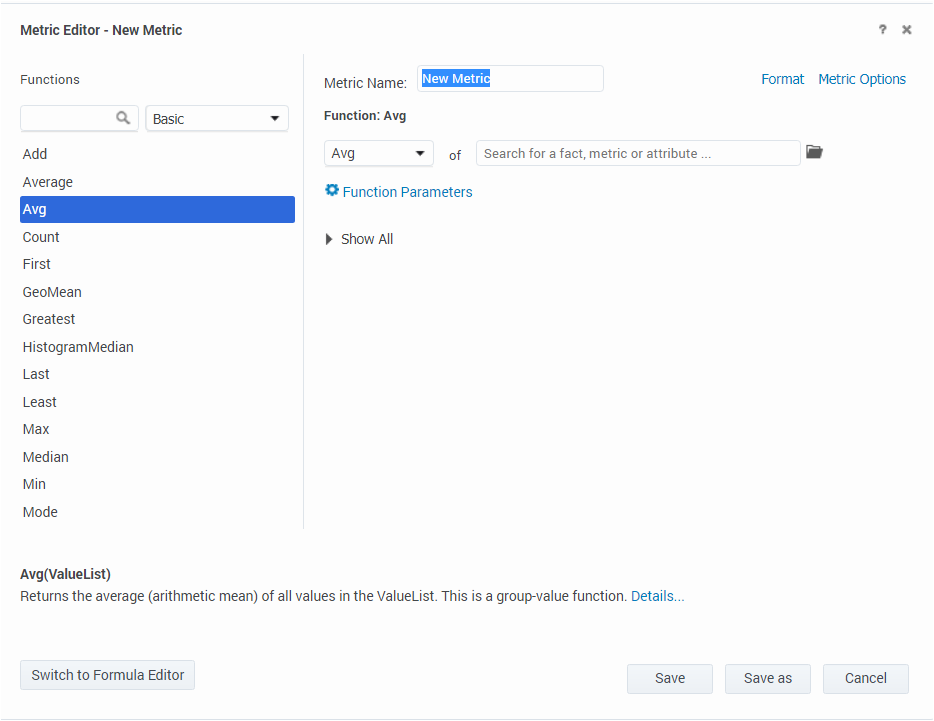
- Selection of Function category from the drop down list such as mathematical functions or financial functions.
- Switch to formula editor functionality.

- In Function editor window search for math function “Sum”.
- Search for a fact “nEnteredAcd”.
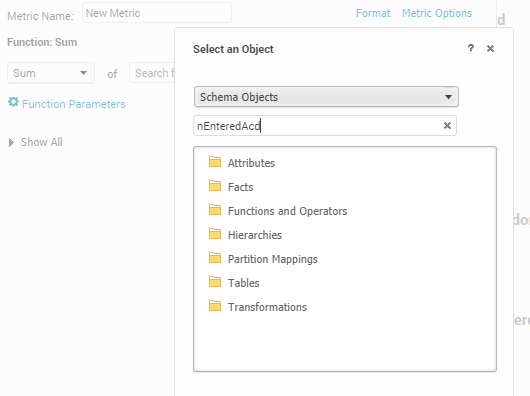
- Identify the fact in the existing folder.
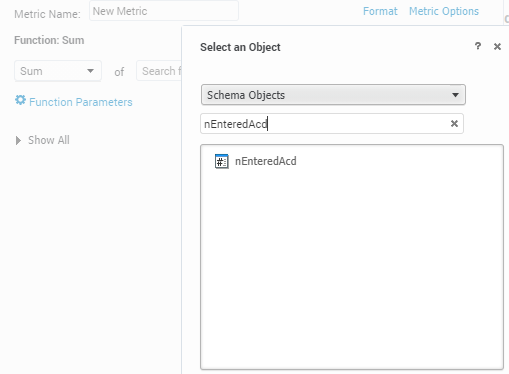
- Select the fact nEnteredAcd and it ensures the object is present in the specified folder.
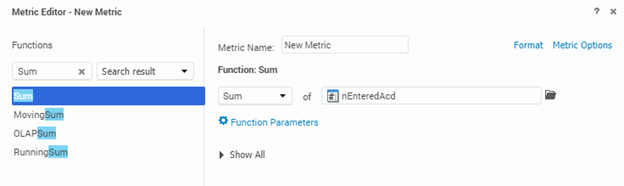
- Set the Function parameters to default.
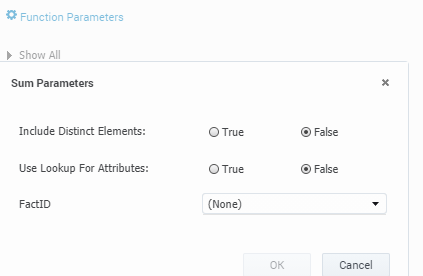
- Set the Level, Condition, and Transformation to default.
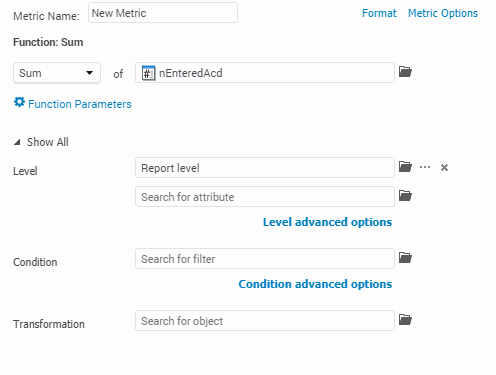
- Level: By default, the metric is calculated at the report level.
- Condition: By default, the metric's condition is set to nothing, which means that a filter is not applied to it. You can specify the filters or conditionality.
- Transformation: By default, the metric does not include transformations, or offset values, such as four months ago. However, you can add transformations.
- Click the Switch to Formula Editor.

- Edit the formula in the Editor window Sum(nEnteredAcd).

- Click the validate to check the validity of newly defined metric.
- The Green highlighted with a check mark shows the formula is validated.
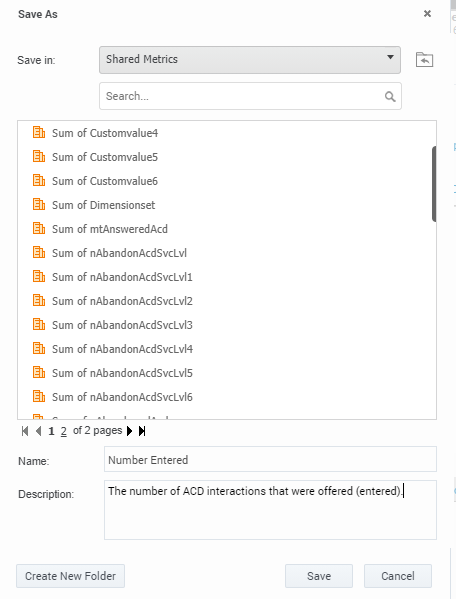
- Save the new metric with the name Number Entered in the selected folder (Default in Shared Metrics folder) with the description The number of ACD interactions that were offered (entered).