


- Contents
PureConnect CX Insights Help
Relationship Set Qualification
A report must list customers from the same region as a specific customer, Hugh Abarca. You need to use the relationship between customer and customer region to filter the report. A relationship set qualification lets you restrict data based on the relationship between two attributes, in this case Customer and Customer Region.
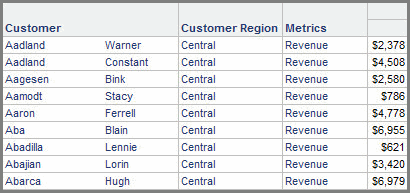
The image below shows a section of the report without the relationship set qualification added. Notice that all customers are listed regardless of customer region.

In a relationship qualification, you create a relationship between two attributes and then place a filter on that relationship. In this case, a relationship between customer Hugh Abarca and Customer Region is created and the report is filtered to show only customers in the same region as Hugh Abarca.
Relationship filters are considered set qualifications because they create a subset of attributes from the whole. They are created using either the Set qualification or Advanced qualification option in the Filter Editor. The Set qualification option provides an interface to guide you through the process, whereas the Advanced qualification option allows you more control by letting you use commands. For more information on the Advanced qualification option, see the Advanced Reporting Guide.
Filters and attributes: Output level
A relationship set qualification lets you determine the output level, which is the level at which the set should be calculated. Using the example above, to create a report that shows customers in the same region as Hugh Abarca, you need to set the output level to Customer Region and the filter qualification to Hugh Abarca.
For details on levels, see How data is aggregated on a report: metric level. For more information on the output level, see the Advanced Reporting Guide
Creating a filter based on relationships between attributes
Use the following steps to create a simple relationship set qualification. For more details on any of the options, click Help or see the Advanced Reporting Guide.
A filter based on relationships between attributes is created from MicroStrategy Developer.
To create a filter based on relationships between attributes
- Log in to a project in Developer. On the File menu, point to New, and choose Filter. The Filter Editor appears.
If the New Filter dialog box is displayed, click the Empty Filter icon. If you do not want this dialog box to be shown in the future, select Don't show this dialog in the future. Click OK. For more information about Object templates, see the Designing Reports chapter of the Advanced Reporting Guide.
If you are using the MicroStrategy Tutorial to create the example mentioned above, log in to the MicroStrategy Tutorial project. Create a new report containing the Customer Region and Customer attributes, and the Revenue metric. To create a new report in Developer, see the MicroStrategy Developer Help.
- Double-click the Filter definition pane at the top right. The Filtering Options pane opens.
- Click the Add a Set qualification option, and click OK. The Set Qualification pane opens.
- Select Relationship from the Type drop-down list. The Set Qualification pane expands, similar to the image below:
- Set the output level, which is the level at which the set is calculated. To do this, browse by clicking ... (the browse button) next to the Output Level to locate the level at which you want the set calculated. Select the attribute, and click OK. (For an explanation of levels, see How data is aggregated on a report: metric level.)
If you are using the Tutorial, set the output level to Customer Region.
- In the Filter Qualification area, choose a filter in one of the following ways:
To use an existing filter, click Browse. In the Open dialog box, navigate to the folder that contains the filter, select the filter, and click OK.
To build a new filter, click Create. The Qualification Editor opens. (You may notice that this editor is similar to the Filter Editor.) Click Help for steps to use the Qualification Editor to create a filter. When you are finished, click Save and Close.
If you are using the Tutorial, create a filter with an attribute qualification for Customer = Hugh Abarca.
- By default, the Filter Qualification chosen applies to the whole report and not just the relationship filter. You can change this option by clicking Advanced and clearing the Also apply this qualification independently of the relationship filter box. For more information on this option, see the Advanced Reporting Guide
If you are using the MicroStrategy Tutorial, clear the default so the Hugh Abarca filter is applied only to the relationship. Otherwise, when the report is executed, the only row in the report will be Hugh Abarca, with no other customers from his region included.
- Click OK to close the Set Qualification pane.
- Click Save and Close the Filter Editor toolbar. The Save Filter As dialog box opens.
- Navigate to the folder where you want to save the filter. Enter a Name and Description for the filter, and click OK. Your new filter is saved.
- Navigate to the folder where you want to save the filter. Enter a Name and Description for the filter, and click Save. Your new filter is saved.