


- Contents
Interaction Process Automation Monitor Help
Grouping Processes in Separate Lists
You can separate the data in the Process View into lists that you can expand or collapse. You can use any of the column headings to group the data.
You can group by a single column or by multiple columns.
To group by a single column:
-
Right-click the column heading by which you want to group the data.
-
On the shortcut menu, click Group By This Column. The column heading appears in the Group By Box above the heading row and the data is grouped by that column.
To group by multiple columns:
-
Right-click anywhere in the heading row, and then click Group By Box.
The Group By Box appears above the heading row. -
Drag the column heading by which you want to group the data and drop it onto the Group By Box.
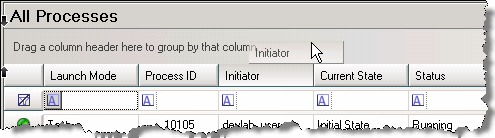
-
The data is then grouped by that column.
-
Drag another column heading onto the Group By Box to separate the items in the existing groups into sub-groups.
-
Repeat the previous step as many times as necessary to separate the data into more sub-groups.
To remove a grouping:
-
Drag the column heading from the Group By Box back onto the heading row.