


- Contents
PureConnect Release Notes
Interaction Connect Account Code Configuration
Administrators with the appropriate rights can configure account codes in the new Account Codes view. Account Code configuration was formerly available only in Interaction Administrator. For more information, see Configure Account Codes.
Requirements for Configuring Account Codes
-
To display the Account Codes view, you need the Master Administrator right or Administrator Access rights to at least one account code.
-
If you have Administrator Access to All account codes, you can view, edit, delete, or add any account code.
-
If you have Administrator Access to only the account codes in selected Access Control Groups, you can view, edit, delete, or add account codes only for those Access Control Groups.
-
If you have Administrator Access only to selected account codes, you can view, edit, or delete only those account codes. You cannot add any account codes.
Account Codes view
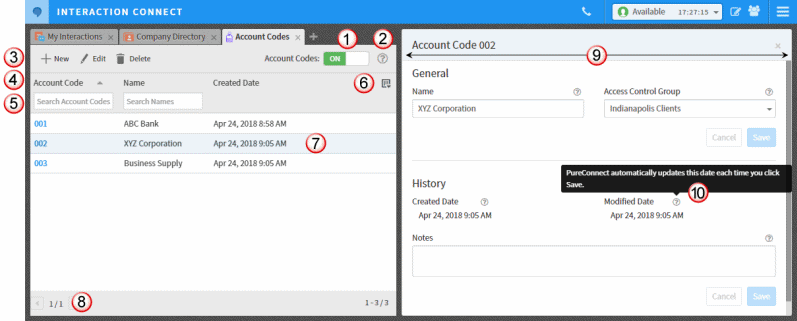
| Account Codes view | ||
|
1 |
Account Codes |
Toggle switch for enabling account codes. This makes Account Codes generally available for assignment to interactions. Users must still meet the Requirements for Assigning Codes. Note: The Account Codes toggle switch is visible only if you have the Master Administrator right, Administrator Access rights to all account codes, or Administrator Access to account codes in all Access Control Groups. It is not visible if you have Administrator Access only to some account codes; for example, selected individual account codes or account codes in selected Access Control groups. |
|
2 |
Help |
Click for Account Codes view help. |
|
3 |
Toolbar |
New (Add), Edit, and Delete controls. Note: The New button is enabled only if you have the Master Administrator right, Administrator Access rights to all account codes, or Administrator Access to account codes in all Access Control Groups. The New button is disabled if you have rights to only some account codes. |
|
4 |
Column headings |
Sort the list by clicking the Account Code heading. Move columns by dragging and dropping column headings. For more information, see Customize Columns. |
|
5 |
Search |
Search for account codes by code number or name. |
|
6 |
Choose Columns |
Use the Choose Columns control to add or remove view columns. |
|
7 |
Account Codes |
A list of currently configured account codes. |
|
8 |
Paged display |
If you have more account codes than fit in the view, use the paging controls to scroll through the list. |
|
9 |
Configuration panel |
A slide out panel for adding or editing account codes. |
|
10 |
Help |
To display help for a selected field, point to this icon. |