


- Contents
Factory Image Restoration Procedures 04 Technical Reference
Verify RAID Configuration
Before you reimage a server, ensure the server’s RAID configuration matches the default configuration required to restore factory settings.
-
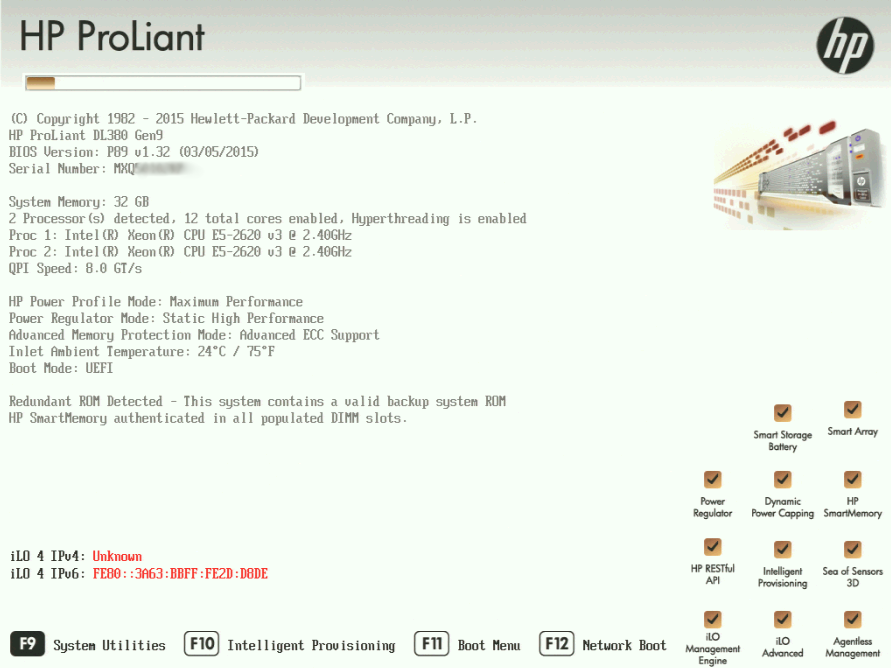
Start the device. The HP ProLiant Power-On Self-Test (POST) begins.
-
When prompted, press F9 to enter the System Utilities.
-
When the System Utilities menu appears, select System Configuration (see Appendix A, Figure 1).
-
On the System Configuration menu, select the appropriate disk controller:
-
For the 60 Gen9, select Smart Array P440 Controller
-
For the 360 Gen9, select Smart Array P440ar Controller
-
For the 380 Gen9, select Smart Array P440 Controller
-
-
Select Exit and launch HP Smart Storage Administrator (HPSSA).
-
Select HP Smart Storage Administrator (see Appendix A, Figure 2)
-
After the HP Smart Storage Administrator loads, click the appropriate array controller in the left pane (see Appendix A, Figure 3):
-
For the 60 Gen9, select Smart Array P440
-
For the 360 Gen9, select Smart Array P440ar
-
For the 380 Gen9, select Smart Array P440
-
-
Under Actions, select Configure.
-
In the left pane, under Controller Devices click Arrays. (see Appendix A, Figure 4)
-
Verify that the RAID configuration matches the settings required for the device, according to your server’s configuration requirements listed in the following table.
|
Device Type |
RAID Configuration Requirements |
|
|
Interaction Application Server |
Based on your server model, verify the existence of the logical drive on the device. If the required logical drive exists, and the status is OK, no further configuration is needed. Proceed to Restore Factory Defaults. If the required logical drive configuration does not exist, or the status is not OK, you must delete the current array configuration and recreate it. Proceed to Delete and redefine array configuration. |
|
|
Model |
RAID Configuration |
|
|
360 Gen9 Medium |
Single RAID 1+0 logical drive, consisting of 4 HDDs |
|
|
360 Gen9 Large |
Single RAID 1+0 logical drive, consisting of 4 HDDs |
|
|
380 Gen9 |
Single RAID 1+0 logical drive, consisting of 8 HDDs |
|
|
Interaction Media Server™ |
Based on your server model, verify the existence of the logical drive on the device. If the required logical drive exists, and the status is OK, no further configuration is needed. Proceed to Restore Factory Defaults. If the required logical drive configuration does not exist, or the status is not OK, you must delete the current array configuration and recreate it. Proceed to Delete and redefine array configuration. |
|
|
Model |
RAID Configuration |
|
|
60 Gen9 Small |
60 Gen9 Small: Single RAID 1 logical drive, consisting of 2 HDDs |
|
|
360 Gen9 Medium |
Single RAID 1+0 logical drive, consisting of 4 HDDs |
|
|
360 Gen9 Large |
Single RAID 1+0 logical drive, consisting of 4 HDDs |
|