

- Contents
Factory Image Restoration Procedures 05 Technical Reference
Capture the Current System State
Interaction Media Server only: The capture process does NOT save recordings and logs. Therefore, Genesys strongly recommends that you back up your recordings and logs before you capture a system image.
Interaction Application Server only: The capture process saves the OS partition ONLY. Therefore, Genesys strongly recommends that you back up any data you might need after restoring this user-configured image in the future.
Note: The capture process saves only ONE system state capture. Capturing the current system state replaces any previous system state captures.
-
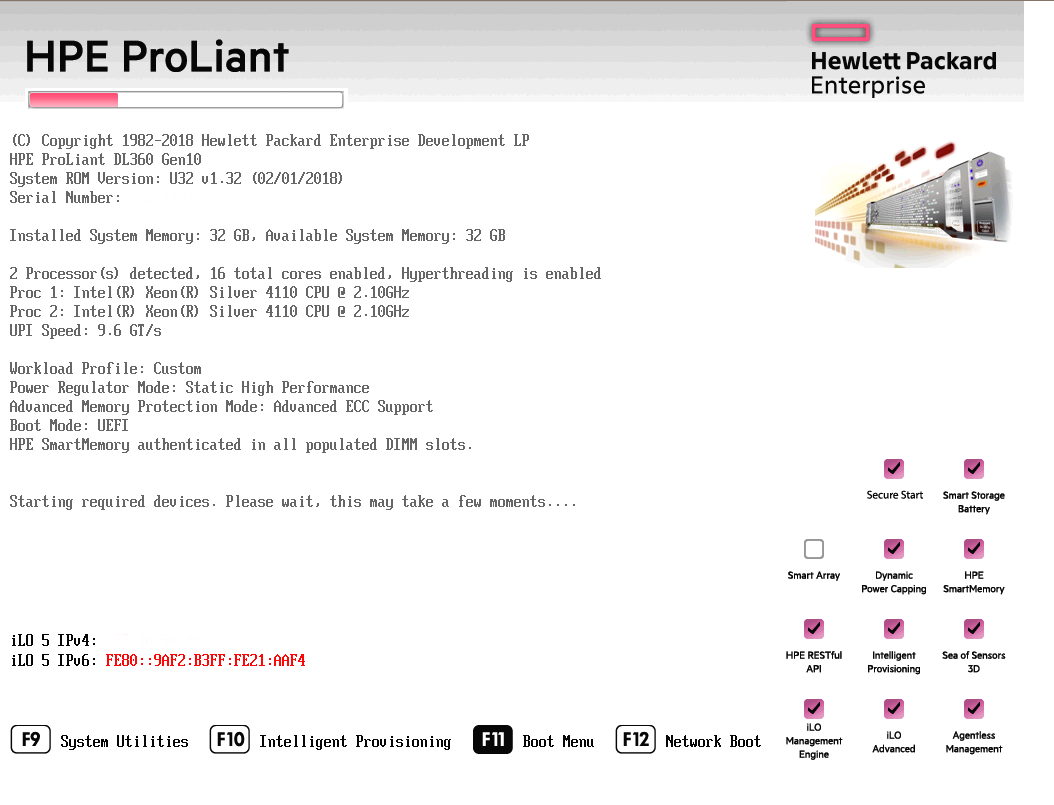
Restart your computer. The HP ProLiant Power-On Self-Test (POST) runs.
-
Press F11 to enter the Boot Menu.
-
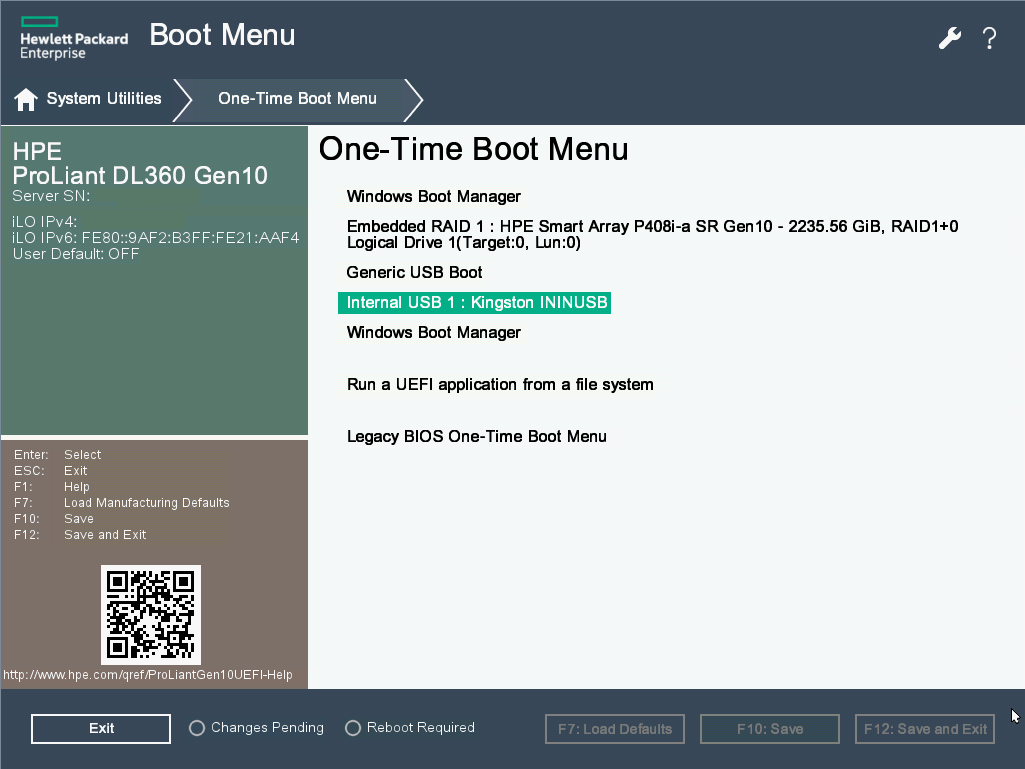
Select Internal USB and then press Enter.
-
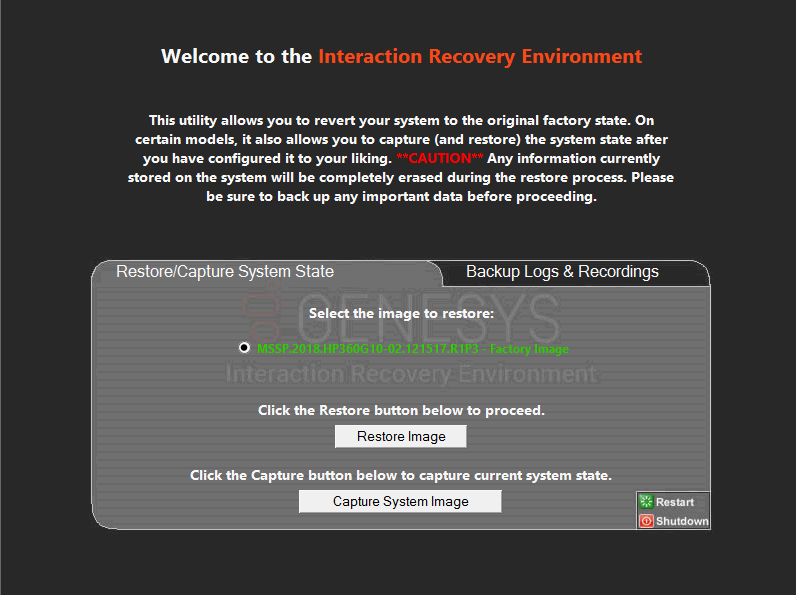
Wait for the system to start. When the system completes the process, the Welcome to the Interaction Recovery Environment window appears.
-
Select one of the following actions based on the type of packaged server you have:
-
Click Capture System Image and follow the prompts to save the current configuration. The system requests confirmation of the system image capture operation.
-
Click Confirm to proceed.
-
Wait while the system captures the current system state, which can take several minutes.
-
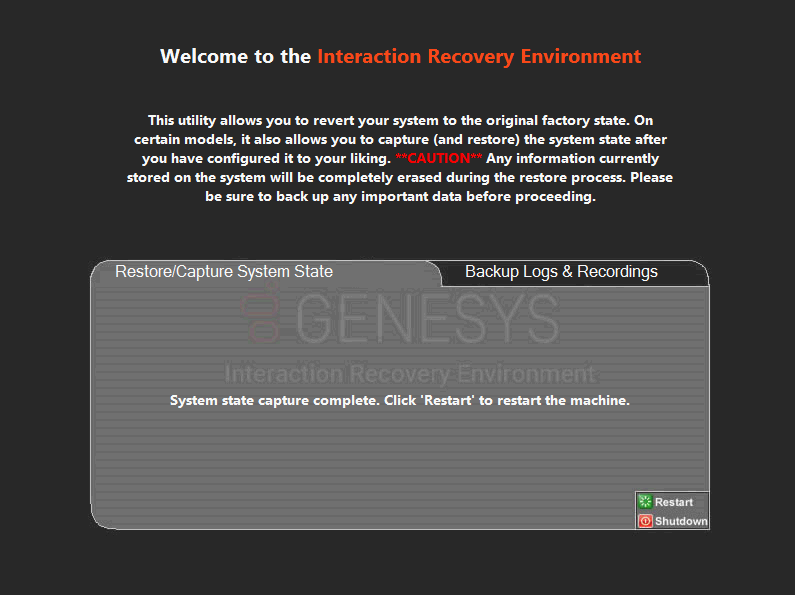
When the System state capture complete message appears, click Restart to restart your computer and complete the process.
-
Click Yes to confirm that you want to restart.
Interaction Media Server only: The capture process does NOT save recordings and logs. Therefore, Genesys strongly recommends that you back up your recordings and logs before you capture a system image.
Interaction Application Server only: The capture process saves the OS partition ONLY. Therefore, Genesys strongly recommends that you back up any data that you might need after restoring this user-configured image in the future.