


- Contents
Factory Image Restoration Procedures 05 Technical Reference
Restore a Captured System State
Note: The restore process deletes ALL information on the server currently. Therefore, Genesys strongly recommends that you back up recordings, logs, and other critical files before you restore a system image.
-
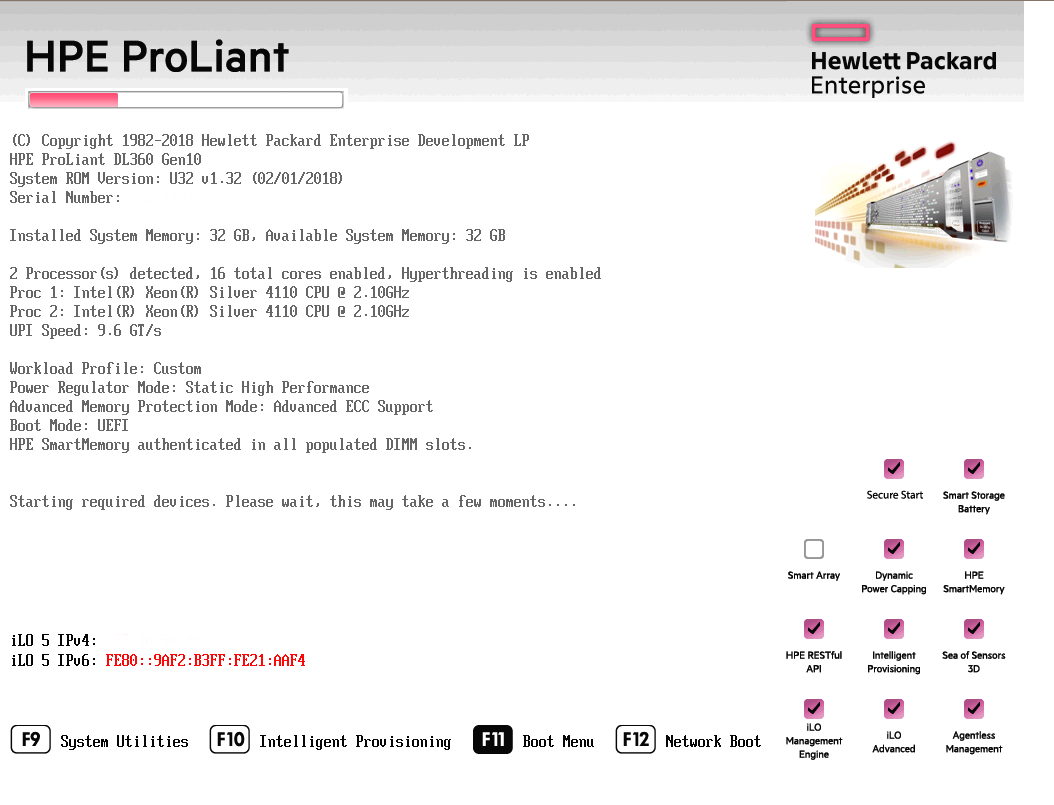
Restart your computer. The HP ProLiant Power-On Self-Test (POST) runs.
-
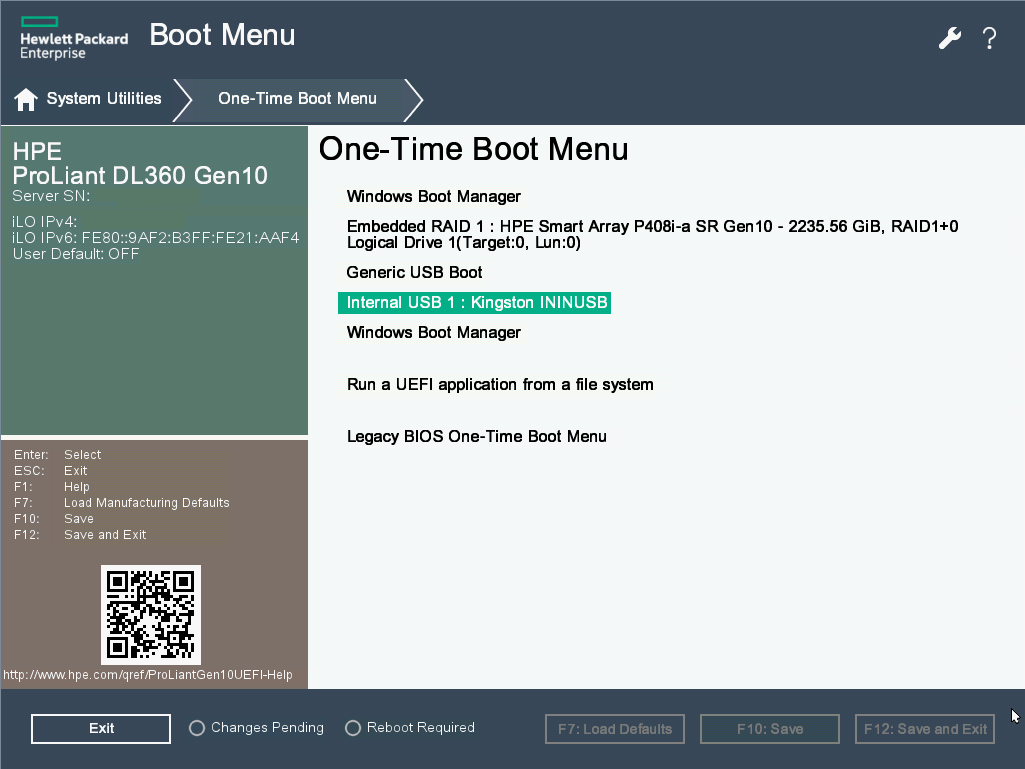
Press F11 to open the Boot Menu.
-
Select Internal USB and press Enter.
-
Wait for the system to start. When the system completes the process, the Welcome to the Interaction Recovery Environment window appears.
Note: The restore process erases ALL information currently stored on the server; therefore Genesys strongly recommends that you back up recordings, logs, and other critical files before you restore a system image, if possible.

-
In the Select the image to restore area, select the User Configured Image to which you want to restore the computer and then click Restore Image. The system requests confirmation of the image restore operation.
-
Click Confirm to proceed.
-
Wait while the user configured image restores, which can take several minutes.
-
When the System restore complete message appears, click Restart to restart your computer and complete the process.
-
Click Yes to confirm that you want to restart.
