


- Contents
Using LDAP for CIC Contact Lists Technical Reference
Create a contact list source
Now that you have created the CIC LDAP-compatible data source, the next task is to create a contact list source that will use the data source. Follow these steps:
-
From Interaction Administrator, expand the Contact Data Manager node and select
 Contact
List Sources.
Contact
List Sources. -
Right-click in the Contact List Source Name area and select New from the menu that appears.
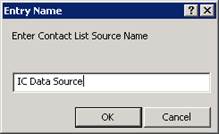
The Entry Name dialog opens.
-
Type the name of the new contact list source. This will become the name that appears on the CIC client's Directory tab. Click OK.
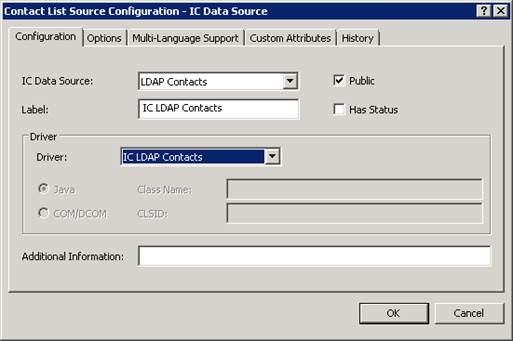
The Contact List Source Configuration window appears.
-
From the IC Data Source list, select the name of the data source you just created in Creating a new CIC data source.
-
Select the Public option for public contact sources.
Note: When creating a Private contact, this box is cleared. Refer to Private contact considerations.
-
From the Driver list, select
IC LDAP Contacts.
The window will be similar to the following:
-
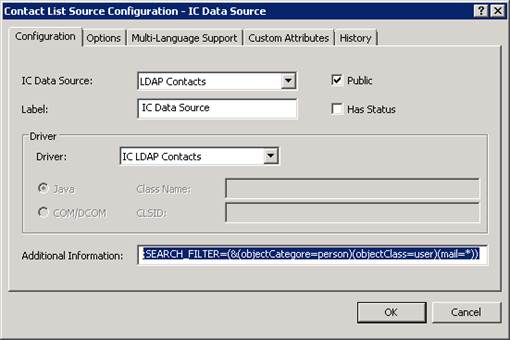
In the Additional Information box, type configuration information to extend the settings not covered by the above fields. Use the following syntax:
<Attribute>=<Value>[;<Attribute>=Value…]Configuration syntax
Definition
AttributeUppercase or lowercase letters are allowed. Case is not preserved.
ValueUppercase or lowercase letters are allowed. Case is preserved.
=Blank spaces around equal sign (
=) are allowed.When
Valuecontains one or more equal signs (=), thenValuemust be enclosed by double quotation marks ("").;Blank spaces around semi-colon (
;) are allowed.When
Valuecontains one or more semi-colons (;), thenValuemust be enclosed by double quotation marks("").Additional Information attributes
Configuration syntax
Definition
SEARCH_DN=Use to override the search DN specified in the Interaction Administrator CIC Data Source configuration. In LDAP, a search involves three parameters:
-
SEARCH_DN=a place (node) in the directory tree to start searching from. -
SEARCH_FILTER=a filter/query to be applied to the contact entries. -
SEARCH_SCOPE=a specification for how/if the search is to proceed down the tree.
When specifying the search DN, enclose the string in double quotation marks (
""), since the standard DN format contains equal signs (=).You can use one or more user substitution variables inside the DN; this is particularly useful when setting up private contacts (see the section on
USERNAME_MAPPING_FILE=).In addition, you can use one or more built-in substitution variables. They are:
$ICUID- the CIC user ID. Generally only useful for private contact sources.$CONTACTSOURCE- the name of the contact list source used by the Data Manager. For example: Our Public Contacts.$BINDDN- The DN used to bind with, as specified in the Interaction Administrator CIC Data Source configuration.Note: These variables must all be in uppercase letters.
SEARCH_FILTER=Contains, in LDAP search syntax, the search filter/query to be used.
For example:
(&(objectclass=i3person)(i3owner=$ICUID))You can use one or more user substitution variables inside the DN; this is useful when setting up private contacts (see the section on
USERNAME_MAPPING_FILE).In addition, you can use one or more built-in substitution variables. They are:
-
$ICUID- the CIC user ID. Generally only useful for private contact sources. -
$CONTACTSOURCE- the name of the contact list source used by Data Manager. For example: Our Public Contacts. -
$BINDDN- the DN used to bind with, as specified in the Interaction Administrator CIC Data Source configuration. -
$SEARCHDN- the search DN as specified in the Interaction Administrator CIC Data Source Configuration (Search DN field), or as overridden in the contact list source. -
$SEARCHDNPARENT- the parent DN of the configured search DN.
Note: These variables must all be in uppercase letters.
SEARCH_SCOPE=Specifies how/if the search proceeds down the sub-tree rooted by the search DN. It can have one of three values:
-
ONE- This is the default. Searches entries only directly below the search DN. -
SUB- Starts the search at the search DN and then searches everything below, including the search DN. -
BASE- Searches only the search DN entry.
ATTRIBUTE_MAPPING_FILE=By default, CIC uses an object class called
i3person(which inherits frominetorgperson) for storing contact information. However, you are free to choose whatever object class you like, including a custom object class. To do this, you must create a file that contains the mappings between the CIC attributes and the attributes of your object class. CIC provides two sample map files, I3PERSON_MAP.TXT and INETORPERSON_MAP.TXT, that contain syntax and usage documentation in the files themselves.Note: I3PERSON_MAP.TXT is provided for informational purposes, and unless you want to modify any of the defaults you do not need to have an
ATTRUBUTE_MAPPING_FILE=entry for it, since CIC knows about the mappings for thei3personobject class.For more information, see i3person_map.txt example file and inetorgperson_map.txt.
USES_FOLDERS=The default is True. Set to False if the contact entries are not rooted by a folder/container entry that you want CIC to create. CIC has a default folder object class called
i3genfolderthat you can use.FOLDER_ATTRIBUTE_FILE=You can use your own folder type (such as a folder other than
i3genfolder) and still have CIC automatically create the folders to contain your contacts. To do this you must create a file that contains information about the attributes of the folder object class you wish to use. An example file I3GENFOLDER_MAP.TXT is provided whose syntax and usage is the same as the attribute mapping file, and is documented in comments inside the file itself.Note: CIC knows about the mappings for
i3genfolder, so unless you need to modify the defaults, you don't need to have aFOLDER_ATTRIBUTE_FILE=entry if you plan on using the defaulti3genfolderobject class.For more information on the sample folder attribute file, see i3genfolder_map.txt.
RDN_ATTRIBUTE=Each newly created contact must have a globally unique distinguished name (DN). The left-most component of a distinguished name is called a relative distinguished name (RDN), and contains the attribute-value pair that uniquely defines the contact entry within the current directory. By default, Data Manager will use the
useridattribute as the attribute for the RDN. However, you can choose whatever attribute you want by setting this option.Note: Even though you can specify any attribute as an RDN attribute, DataManager will always set it to a unique timestamp value (for example:
200009231456450001000. So when choosing an RDN attribute, make sure the semantics of the attribute are such that a unique timestamp value like this will not cause any problems.USERNAME_MAPPING_FILE=When accessing private contacts, the only information CIC has when distinguishing one user's contact data from another user's contact data is the CIC user ID value. These values might or might not be the same as the LDAP user ID attribute's values.
If the values are not the same, set up a file to specify the mapping from the CIC user ID to the LDAP user ID. In fact, you can do this, even if they are the same, in order to specify other substitution values for a user.
The ICUSER_MAP.TXT example mapping file provides syntax and usage documentation. For more information, see ICUser_map.txt example file.
Example use of attributes
Syntax for public contact source that uses the default folders:
SEARCH_DN="cn=$CONTACTSOURCE, ou=People, o=Airius.com";Syntax for private contact source that uses the default folders:
SEARCH_DN="cn=$CONTACTSOURCE, uid=$ICUID, ou=People,
			 o=Airius.com";
Syntax for private contact source that does not use the default folders:
USES_FOLDERS=FALSE; SEARCH_DN="uid=$ICUID, ou=People,
			 o=Airius.com";SEARCH_FILTER="(objectclass=i3person)";
The following shows an example of a minimal contact list configuration for a public contact source that uses the default folders.
-
-
When you have set the configuration data, click OK.
-
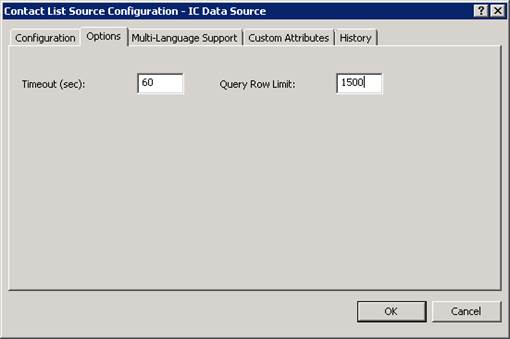
Click the Options tab.
-
In the Timeout (sec) box, optionally type the timeout in seconds for LDAP operations.
-
In the Query Row Limit box, optionally type a value that limits the number of rows to return. This is a safeguard against accidentally loading large numbers of contact entries. The following shows an example of an Options tab configuration:
-
Click OK.