


- Contents
Interaction Recorder Technical Reference
Assign Calibration Scorecards
The Media Details pane also includes an Assign Calibration button to assign calibration scorecards to a recording.
To assign calibration scorecards for a recording, click the Assign Calibration
button  . The Assign Calibration Scorecards
dialog is displayed.
. The Assign Calibration Scorecards
dialog is displayed.
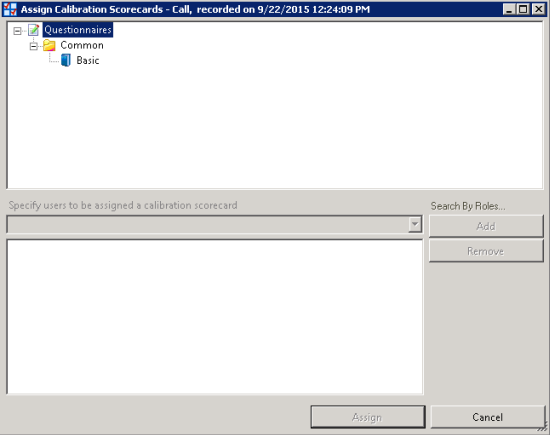
Use the Assign Calibration Scorecards dialog to assign a questionnaire to the recording and to specify the scoring users to be assigned the calibration scorecard.
To assign a questionnaire to be used for calibration:
-
Select a questionnaire from a Questionnaires folder.
-
From the drop-down list specify the scoring users to be assigned the calibration scorecard.
You can also specify users by Roles. To do this:-
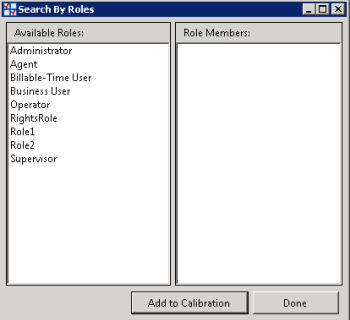
Click Search By Roles. The Search by Roles dialog is displayed.
-
Select a Role to display its members.
-
Select users from the Role Members.
-
Click Add to Calibration to include the names in the calibrate recording user list in the Assign Calibration Scorecards dialog.
-
When you have finished adding Role Members, click Done.
-
-
When you have finished specifying users to be assigned the calibration scorecard, click Assign.