- Contents
Interaction Analyzer Technical Reference
Create Interaction Analyzer Keyword Definitions
Important!
Genesys recommends that you define your keywords, keyword set names, and categories before you specify keywords in Interaction Analyzer. This process saves you a great deal of time as opposed to specifying keywords without having a defined structure or business goals.
To create Interaction Analyzer keyword definitions
-
Open Interaction Administrator, either remotely or directly on the CIC server. The Interaction Administrator window appears.
-
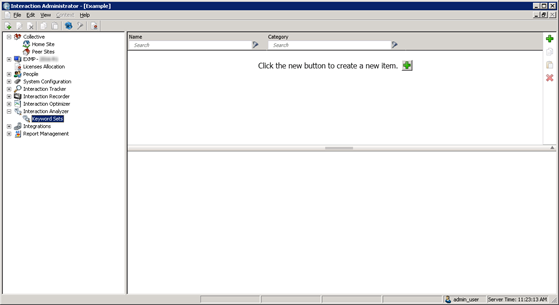
In the navigation pane, expand the Interaction Analyzer container and then click the Keyword Sets object. The Interaction Analyzer interface appears in the right pane.
-
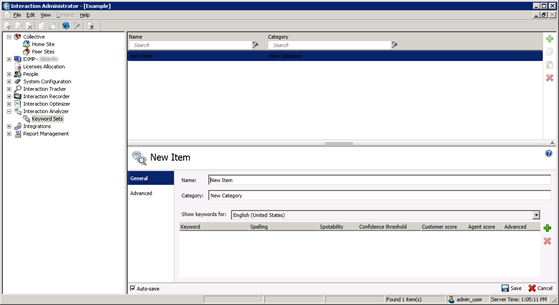
Click the green Add icon. A New Item appears in the right pane. This new item is a keyword set, which allows you to specify multiple keywords and phrases.
-
In the Name box, type a unique and descriptive name to assign to this keyword set.
Note:The keyword set name must be unique from other keyword set names and descriptive enough to allow you to identify the types of keywords that it contains.
-
In the Category box, type the name of the category to assign to this keyword set.
Note:
You must assign the keyword to a category. Category names must contain fewer than 128 characters.
For more information about categories, their purpose, and how Interaction Analyzer uses them, see Interaction Analyzer Categories.
-
To define a keyword for a different language other than the default, select it from the Show keywords for list box.
Tip:
You can define keywords for multiple languages in a single keyword set.
For more information about supported languages for keyword spotting, see Language Support for Interaction Analyzer Keyword Spotting.
-
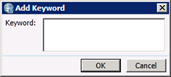
Click the Add icon. The Add Keyword dialog box appears.
-
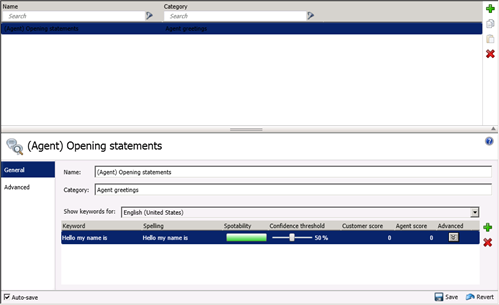
Type a keyword or phrase that you want Interaction Analyzer to monitor and then click OK. Interaction Administrator adds the keyword to the keyword set.
Note:
You can add the same keyword to multiple keyword sets. For example, you can add "thank you for calling" to keyword sets, such as agent greetings and agent closings. You can assign both keyword sets to the interaction through an Interaction Recorder policy. When an agent says the keyword, Interaction Analyzer identifies that the keyword belongs to multiple keyword sets and marks the recording with that information.
Note:
By default, Interaction Recorder policies that start analysis of interactions are limited to 50 keywords across both the agent and customer channels. Interaction Analyzer does not allow you to save a keyword set with more than 50 keywords for one language, which include anti-spellings and pronunciations. For more information about keyword limits, see Keyword Limits.
-
Add more keywords as necessary.
-
Click Save.
Note:
You cannot create another keyword set until you save the current keyword set.