


- Contents
Crystal Reports Import Utility Technical Reference
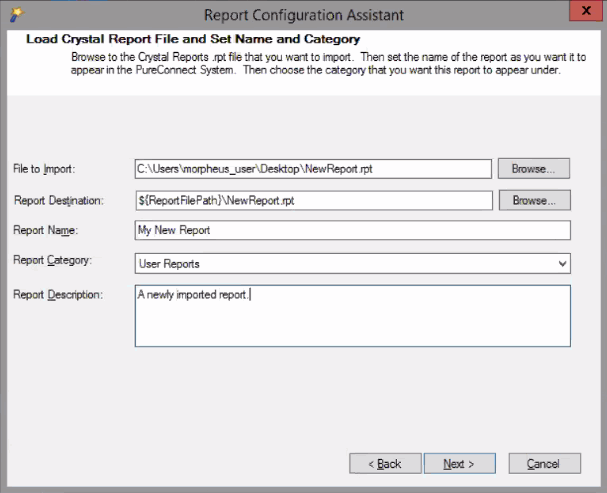
Complete the Load Crystal Report Files and Set Name and Category page
-
To complete the File to Import box, click Browse and select the Crystal Report (.rpt) file.
By default, the Browse button takes you to the location where all of the Crystal Report .rpt files are stored.
-
To complete the Report Destination box, click Browse and select the location where CIC finds the report.
Note:
The Report Destination box automatically inserts the${ReportFilePath}\parameter before the destination that you select. Do not delete or replace this parameter.
-
In the Report Name box, type a meaningful name for the report.
-
In the Report Category list, select the appropriate category. Categories are configured in Interaction Administrator. For more information, see your CIC administrator.
-
In the Report Description box, type a brief explanation of the purpose of the report.
-
Click Next.
The Configure Tables dialog is displayed.