


- Contents
CX Insights Installation and Configuration Guide
Install MicroStrategy Developer with New License Key
- Download Intelligent Enterprise from MicroStrategy community.
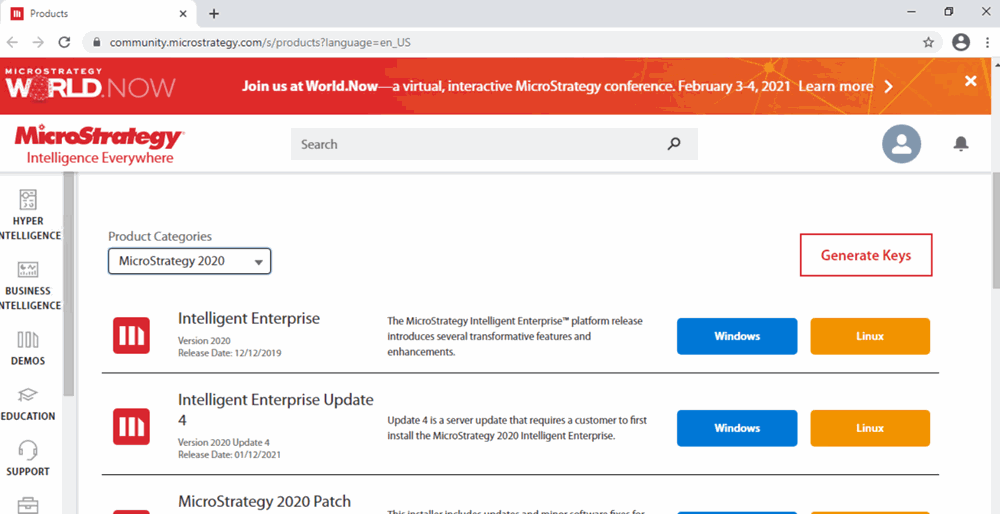
- It will ask for confirmation to agree to the terms and conditions, please check the I Agree check box and click on the Download button
- Unzip the downloaded zip file and click MicroStrategy.exe file.

- It will popup the language selection screen. Select the Language.

- Click Next in the Welcome wizard.
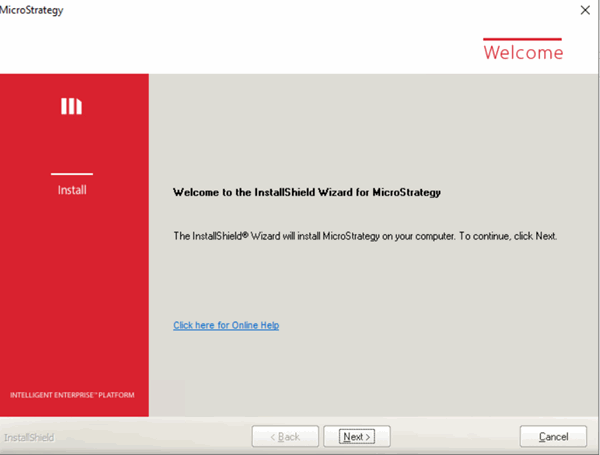
- If its popup screen for reboot is required, enter Yes.

- Accept the License Agreement and click Next.
- Enter the License key and the details.

- If the license is valid, It will list the available Microstrategy products for that license. Click Next.
- Select Custom Instal and click Next and Next.
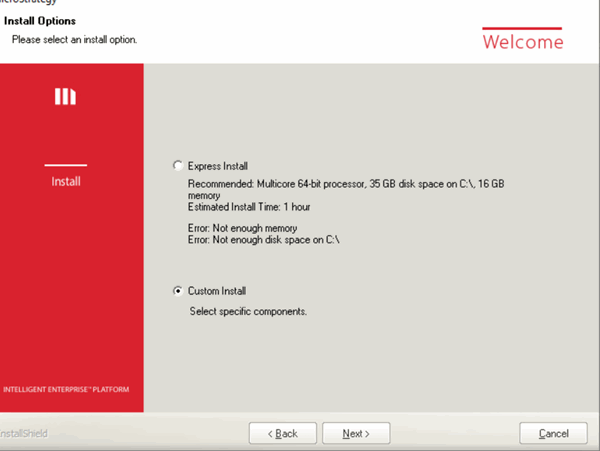
- Select the products, clear all and select Microstrategy Developer and Microstrategy Server Administration.

- Click Yes, If it pop up with a question, It will show another screen.

- Check the Automatically restart the computer option and click Install.


- It will reboot the machine after installation. You can open the Microstrategy Developer after the system is rebooted.
- Please run the following command in your Cent OS /RHEL machine where CXInsights is deployed
- kubectl expose deployment pcn-cxinsights-helmcharts-gcxi --type=NodePort --name=mstr-gcxi-service -n pcn-cxinsights-system
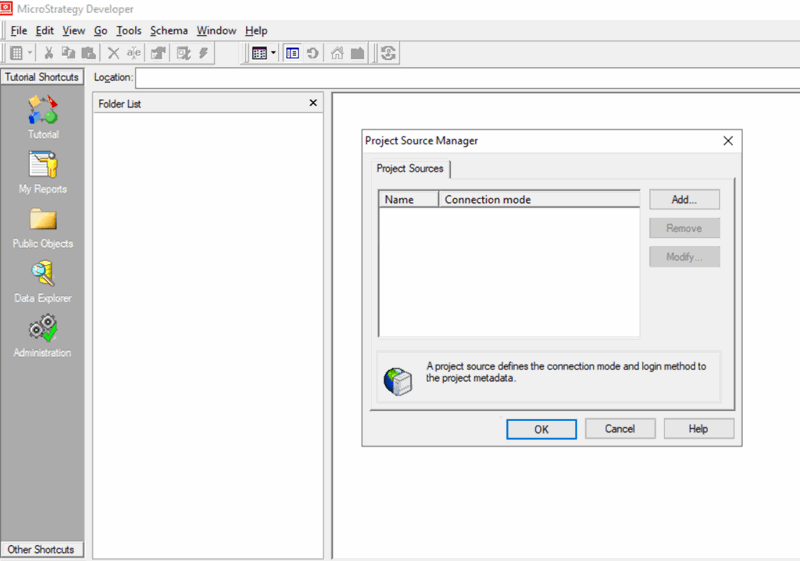
- It will expose the node port to connect GCXI Server from Microstrategy Developer.

- We need to use the Server name and port (32277 for this instance) which is exposed for 34952 port in developer to connect to the GCXI container from developer.

