


- Contents
Oracle Service Cloud Integration Installation and Configuration Guide
Configure chat queue sets
To configure a chat queue set:
-
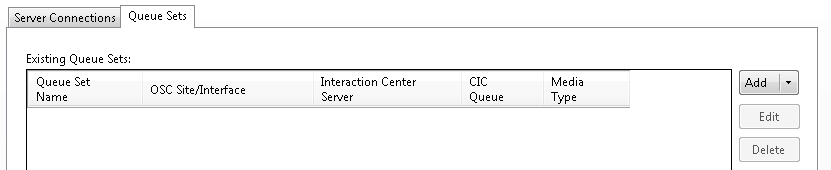
Display the Queue Setstab.
-
Click the Add arrow and select Chat Queue Set.
-
In the Queue Set Details dialog box, complete the following steps to add information about the chat queue:

In the Queue Set Name box, type a name for the queue set.
-
In the OSC Server list, select the Oracle Service Cloud server.
-
In the left pane, click Queue Set Data.
-
-
In the Queue Set Details dialog box, select the chat queue that you set up as the universal queue. If the chat you want is not shown, set up the chat queue according to the instructions in Configure queues and queue rules.
-
All the queues are listed in the Included Chat Queues list. Click Remove All. And then from the Available Chat Queues list , select the universal queue you created and click Add.

-
-
In the left pane, click Routing Modifiers.
-
In the Queue Set Details dialog box, complete the following steps to select required modifiers:

-
In the Interaction Center Server list, select the CIC server to use.
-
In the Destination Workgroup list, select the destination workgroup of the item.
-
In the Media Type list, select Chat.
-
In the Report box, select the report that you imported earlier (the name you gave to: ININ_EmailReport_<year>_<month>.xml).
-
Oracle Service Cloud displays the Media Type Details section.
-
In the Remote Name box, select the field or fields you want as the top line in the PureConnect Media Bar when the chat comes in. To select more than one field, select a field, add a space, and then select another field. Use the format
[First Name] [Last Name]. -
In the Remote Address box, select the field or fields you want as the bottom line in the PureConnect Media Bar when the chat comes in. To select more than one field, select a field, add a space, and then select another field. Use the format
[EMailAddress].
-
-
If needed, add modifier rules. For more information, see the Create modifier rules section.
-
Save the queue set details and service configuration:
-
Click OK.
-
After the chat queue set has been configured, click Save Service Configuration.