


- Contents
Genesys Cloud for PureConnect Administrator's Guide
Configure Genesys Cloud Synchronization Options
This page lets you select the kinds of information synced to your Genesys Cloud organization. For more information, see also Types of information synced to Genesys Cloud.
-
In Interaction Administrator, open System Configuration > Genesys Cloud.
-
On the right side of the view, double-click Configuration.
-
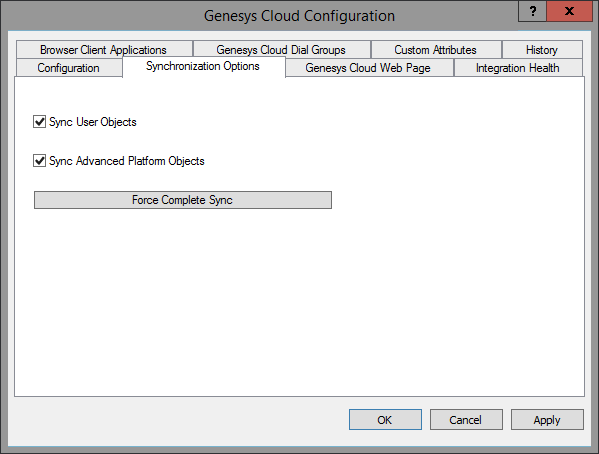
In the Genesys Cloud Configuration dialog, select the Synchronization Options tab.
Note: Sync User Objects is selected by default when you enable Genesys Cloud Integration.
-
Optionally, select Sync Advanced Platform Objects.
This option syncs workgroups, wrap-up codes, and skills to your Genesys Cloud organization. Synchronization is one way only. Additions, changes, and deletions made in PureConnect sync to the corresponding Genesys Cloud objects. However, additions, changes and deletions made to Genesys Cloud queues, skills, and wrap-up codes do not sync to PureConnect.
This option also enables agent presence syncing. This synchronization is also one way. PureConnect agent status syncs to your Genesys Cloud organization. For more information, see Agent Presence.
-
Click Apply.
-
Optionally, click Force Complete Sync.
This action starts a full synchronization of the selected objects. The synchronization occurs regardless of whether it is already up to date.
Warning: If Enforce Scopes is ON, authentication to Genesys Cloud fails on the CIC system and API Health errors occur.