


- Contents
Status Aggregator Technical Reference
1: Configure Status Aggregator Data Sources
The first major step is to configure the Status Aggregator data source in Interaction Administrator on each CIC server. In a multi-CIC server environment, each CIC server should have a data source configuration pointing to the same source. The most common data source is a Lightweight Directory Access Protocol (LDAP) server, but it can be some other data source. This section shows how to configure Status Aggregator for an LDAP data source.
For information about other steps in the process, see Overview of Configuring Status Aggregator.
To configure Status Aggregator data sources in Interaction Administrator:
-
If needed, start Interaction Administrator.
-
Add a new data source:
-
In the tree pane on the left, click the IC Data Sources container.
-
In the IC data source pane on the right, right-click an empty area.
-
In the shortcut menu, click New.
Interaction Administrator displays the Entry Name dialog box.
-
In the text box, type a name for your enterprise directory and click OK.
Interaction Administrator displays the IC Data Source type dialog box.
-
In the list box, click LDAP and then click the Next button.
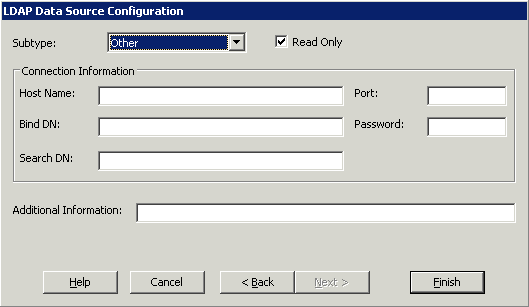
Interaction Administrator displays the configuration dialog.
-
-
Configure your new data source (Enterprise Directory):
-
Expand the Subtype list box and click Active Directory.
-
In the Host Name text box, type the domain name of your Active Directory host.
-
If your Active Directory server listens on a specific port, type it in the Port text box.
If you leave the Port text box blank, the CIC server will use the default port.
-
In the Bind DN text box, type the distinguished name of the user account that the CIC server will use to connect to the Active Directory server. For example, you might type:
CN=Administrator, CN=Users, DC=domain, DC=com
Note: DN means distinguished name. The Bind DN text box contains credentials that let the CIC server log into the Active Directory server.
-
In the Password text box, type the appropriate password.
-
In the Search DN text box, type the distinguished name of the organizational unit to which you want to connect. For example, you might type:
OU=AllUsers, DC=domain, DC=com
-
Leave the Additional Information text box blank.
-
Click the Finish button.
-
Your new data source is configured.