


- Contents
Interaction Administrator Web Installation and Configuration Guide
Create an application pool
-
Open IIS Manager.
-
Expand the navigation tree, right-click Application Pools, and then click Add Application Pool.
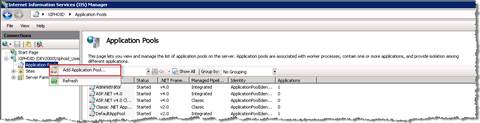
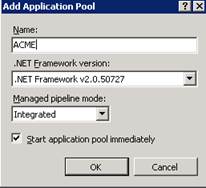
The Add Application Pool dialog box appears.
-
In the Name box, type the name of the company being hosted. For example,ACME.
-
From the .NET Framework version list, select the framework that is installed. For example, NET Framework v4.0.30319.
-
From the Managed pipeline mode list, select Integrated.
-
Verify that the Start application pool immediately check box is selected.
-
Click OK. The application pool appears in the Application Pools page.
-
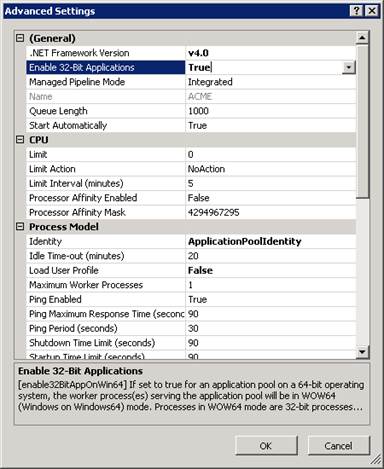
In the Application Pools page, right-click the new application pool. From the shortcut menu, click Advanced Settings. The Advanced Settings dialog box appears.
-
Under General, set Enable 32-Bit Applications to True.
-
Click OK.