


- Contents
- Index
Interaction Analyzer Technical Reference
Search Interaction Analyzer recordings by keyword
You can find spotted instances of specific keywords in all recordings of interactions that Interaction Analyzer processed.
To use this feature, you must have the following product licenses activated:
-
Interaction Recorder
-
Interaction Center Business Manager
To find recordings where Interaction Analyzer spotted a specific keyword, do the following steps:
-
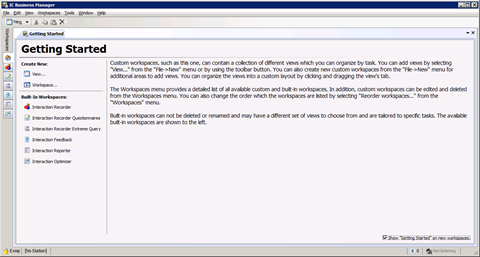
On a personal computer where IC Business Manager is installed, start the application, supplying credentials when prompted. The IC Business Manager window is displayed.
-
On the left side of the window, select the Interaction Recorder tab, which is represented with the following icon:
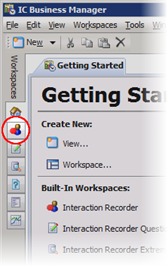
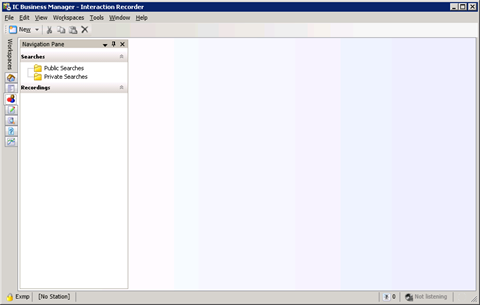
The Interaction Recorder workspace is displayed.
-
In the left pane, select the Public Searches or Private Searches folder.
Note:
Both Private Searches and Public Searches are stored on the Customer Interaction Center server. Private searches are only available to the user who created them. Public searches are available for anyone who uses IC Business Manager in the Customer Interaction Center environment.
The currently defined public searches are displayed in the right pane. If there are no searches and you have the appropriate permissions to create searches, a Create a search hyperlink is displayed.
-
Create a search using one of the following methods:
-
Right-click the Public Searches or Private Searches folder in the left pane and select New > Recording Search from the resulting shortcut menu.
-
If it is displayed in the right pane, select the Create a search hyperlink and select New Recording Search from the resulting shortcut menu.
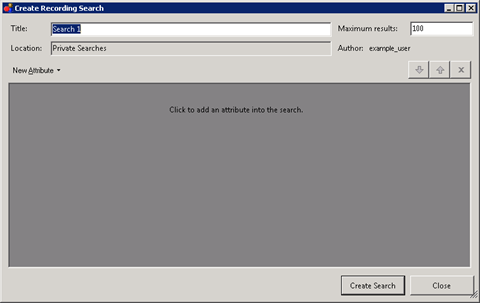
The Create Recording Search dialog box search is displayed.
-
-
In the Title text box, enter a name for this search.
-
In the Maximum results text box, enter the number of records that you want to retrieve.
-
Select the New Attribute button and then select Interaction Analyzer > Keyword.
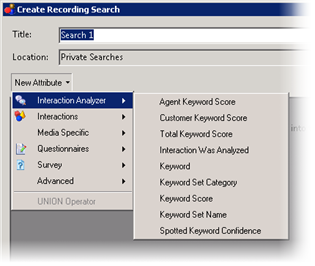
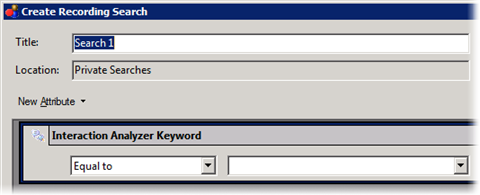
A definition entry for the selected attribute is displayed.
-
In the leftmost list box of the Interaction Analyzer Keyword definition entry, select an appropriate string operator.
-
In the rightmost list box of the Interaction Analyzer Keyword definition entry, manually enter the keyword for which you are search or select it from the list.
The list box displays all keywords in current Interaction Analyzer keyword sets and those that exist in the Customer Interaction Center database.
The list box for specifying a keyword supports a maximum of 128 characters.
-
Select the Create Search button. The recorded interactions that match your search criteria are displayed in the right pane, up to the maximum count that you previously specified.
-
Double-click an interaction that you want to review.
For information on reviewing a selected interaction recording, see Analyzed recordings in Interaction Recorder Client.