


- Contents
- Index
Salesforce Integration Administrator's Guide
Example using a keyboard shortcut
This example uses a custom keyboard shortcut of 1, configured to open or close the softphone.
-
From any page of the Service Cloud® console, press ESC to activate keyboard shortcuts.
An orange border flashes around the border of the screen to indicate that the shortcuts are active.
Note: If your cursor is active on the softphone itself, keyboard shortcuts do not work.
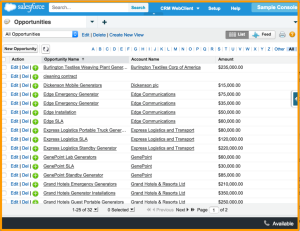
-
Press 1 to open the softphone.
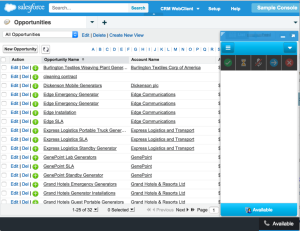
-
Press Esc, then 1 to close the softphone.