


- Contents
Interaction Media Server Technical Reference
Interaction Media Server Config-Properties page
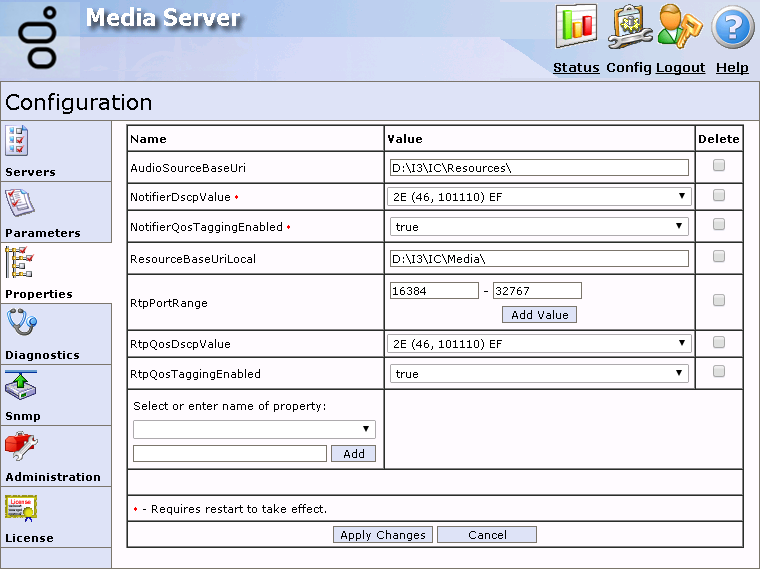
The Properties page enables you to configure settings for this Interaction Media Server and its connections to one or more CIC servers. Interaction Media Server properties are name-value pairs that control Interaction Media Server operations. To add a property, select it from the Select or enter name of property list box. After you have added one or more properties, select Apply Changes to save this configuration.
Note: A red asterisk next to a property name in the web interface indicates that changes to the associated value require you to restart Interaction Media Server for those changes to take effect.
|
AnalyzerDiagnosticRecording |
Indicates whether Interaction Media Server can make diagnostic recordings through any form of analysis, such as by Interaction Analyzer or through call analysis on this Interaction Media Server. The default value for this parameter is false. Important! Set this property to true only if PureConnect Customer Care instructs you to do so.
Tip: The preferred method of enabling diagnostic recordings is through the Telephony Parameters interface in Interaction Administrator. |
|
AsrDiagnosticRecording |
Indicates whether Interaction Media Server can create diagnostic recordings for ASR input echo cancellation. Set this property to true only when you detect echo in the diagnostic recordings that the RecognizerDiagnosticRecording property creates (in the case of Interaction Speech Recognition) or the ASRDebugWav property (in the case of a third-party ASR server). Caution! Diagnostic recordings for Interaction Speech Recognition that Interaction Media Server creates while this property is enabled consist of three recordings for each session. Because of the number and size of files created for these diagnostic recordings, do not leave this property enabled for an extended period as it could exhaust local storage space. Also, the amount of processing resources that Interaction Media Server uses when you set this property to true significantly impacts performance. Genesys recommends that you enable this property only when call volume and CPU usage are low for this Interaction Media Server. Do not enable this property unless PureConnect Customer Care instructs you to do so. |
|
AudioSourceBaseUri |
Set the local path on Interaction
Media Server to the directory that contains all audio .WAV
files used for ring back, music on hold, and in-queue audio. Ensure
that the path ends with a backslash ( Note: This property is for backward compatibility with CIC 3.0. It has no effect when you use Interaction Media Server in a CIC of the same version. |
|
AudioSourceFallbackUri |
Name of the specific .WAV file name that Interaction Media Server uses when it cannot find any of the primary audio files specified in Interaction Administrator. Interaction Media Server uses this .WAV file as a fallback regardless of which .WAV file fails, such as for ring back, in-queue audio, and music on hold. The default value is SystemDefaultAudioOnHold.wav. Note: This property is for backward compatibility with CIC 3.0. It has no effect when you use Interaction Media Server in a CIC of the same version. |
|
EnableCallRecovery |
To keep audio sources alive when it loses the Notifier connection to the CIC server, add this property and set the value to true. |
|
MaxResourceIdle |
If an Interaction Media Server resource does not receive audio for more than the specified number of seconds, the system flags the RTP stream as idle. This value is approximate as Interaction Media Server polls for idle calls every 30 seconds. The minimum value is 15. Notes:
|
|
NotifierDscpValue |
If you set the NotifierQosTaggingEngabled property to True, this parameter changes the DSCP value of the QoS tags on Notifer network traffic. Note: If you change this property, restart Interaction Media Server for this change to take effect. Important! You cannot override this value by specifying it through Interaction Administrator or the Command Servers web interface of Interaction Media Server. |
|
NotifierQosTaggingEnabled |
To specify the DSCP value of QoS tags in network traffic, set this property to True. Note: If you change this property, restart Interaction Media Server for this change to take effect. Important! You cannot override this value by specifying it in Interaction Administrator or the Command Servers web interface of Interaction Media Server. |
|
RecognizerDiagnosticRecording |
This property causes Interaction Media Server to create both .WAV and .XML files containing audio data along with the corresponding events for diagnostic recordings on all Interaction Media Servers connected to the CIC server. The CIC server fetches and moves those files from Interaction Media Server to the CIC server's media storage location. You can only set this property through the ASR Engine Configuration dialog box in Interaction Administrator. You can send these diagnostic recordings to PureConnect Customer Care for analysis to resolve issues. Important! If Interaction Media Server connects to CIC through WAN or other network connections with reduced bandwidth, Genesys recommends that you do not set this property in Interaction Administrator as the transfer of files could impact network connections that are servicing calls and could result in audio issues. Caution! If you enable this property in Interaction Administrator, ensure that you have sufficient free storage space on the CIC server as the system creates Interaction Speech Recognition diagnostic recordings on all Interaction Media Servers and moves them to the CIC server. |
|
RecognizerDiagnosticRecording |
This property causes Interaction Media Server to create diagnostic recordings as .wav files for each interaction. These files are only available on Interaction Media Server—the CIC server does not fetch them. You can only set this property through the Interaction Media Server web interface. If you are experiencing audio issues with Interaction Speech Recognition, select this property in the list box, set the value to true, and click Apply at the bottom of the page. |
|
RecordingAuthorityFormat |
This property specifies how Interaction Media Server defines its server address in an HTTP URL when CIC attempts to download recordings. For example, http://<server>:<port>. This property supports the following formats:
Caution! Do not use the IPv6Address value as it is a precursor of a future feature and could cause communication problems between different systems in your CIC environment. |
|
RecordingCustomAuthority |
If you set the RecordingAuthorityFormat property to Custom, this property specifies the text (server address) that Interaction Media Server sends to CIC. |
|
RecordingMimeTypeDefault |
Audio codec to associate with a recording when you configured Interaction Recorder to use None as its compression format or when custom handlers override a recording and do not specify a Mime Type parameter. The system supports the following values:
Typically, you specify the audio codec for the recordings on Interaction Media Server in Interaction Recorder > Configuration > Recording Processing or System Configuration > Mail > Configuration > Prefixes and Voice Mail in Interaction Administrator. |
|
ResourceBaseUriLocal |
Local path where Interaction Media Server stores recording files as it records them. The default value is <drive:>\<install_dir>\Media. |
|
RtcpQosDscpValue |
If you set the RtcpQosTaggingEnabled property to true, this property specifies the DSCP value to tag to each RTCP packet for Quality of Service (QoS). The associated list box presents the possible values for this property as hexadecimal, decimal, binary, and per-hop-behavior (PHB) values. The default value is 46 (decimal). Important! If you set this property value in Interaction Administrator, only use decimal notation. |
|
RtcpQosTaggingEnabled |
To specify the DSCP value to tag to each RTCP packet for Quality of Service (QoS), set this property to true. If you do not define this property, the system tags RTCP packets in the same manner as RTP packets. If you set this property to false, the system disables DSCP tagging. |
|
RtpAddressLocal |
If your Interaction Media Server has multiple Network Interface Cards (NICs), use this property to specify the IP address that it uses for RTP audio processing. If you are using DHCP for IP address assignments, you can specify the beginning address for a range when used with the RtpAddressLocalMask property. For example, if you use IPv4, specify 172.123.0.0 for this property, and 255.255.0.0 for the RtpAddressLocalMask property, you can assign an address to the NIC in the range from 172.123.0.0 to 172.123.255.255. Note: If the value for this parameter is blank, Interaction Media Server sends RTP packets through only the first NIC configured to reach the destination IP address in the Windows Server routing table. |
|
RtpAddressLocalMask |
Subnet mask for the IP address that you specified in the RtpAddressLocal property. This value is advantageous if you use DHCP to assign IP addresses and you want Interaction Media Server to use a specific range of addresses. Note: If the host computer has multiple network interface cards (NICs), Interaction Media Server balances RTP network communications by randomly selecting a socket from a NIC that matches an IP address within the RtpAddressLocal and RtpAddressLocalMask values. |
|
RtpAddressLocalType |
Versions of Internet Protocol (IP) that this system uses for Real-time Transport Protocol (RTP) communications. Specify a value from the following list:
|
|
RtpDiagnosticCaptureCipherSuite |
Encryption type that Interaction Media Server uses for diagnostic capture files. The following list presents the possible values:
The diagnostic capture files that Interaction Media Server creates contain RTP packets along with metadata about the audio streams. This metadata aids in the analysis of the call and reconstructing the audio stream. The first part of the cipher suite specifies the encryption algorithm and key strength. The second part of the algorithm specifies the authentication method. The NULL value indicates that the system does not use encryption or authentication. Important! If you enable the Secure Input feature on the CIC server, any diagnostic captures on Interaction Media Server do not use this property to determine the encryption algorithm. Instead, The Secure Input feature uses the AES256_HMACSHA1 encryption algorithm to encrypt and authenticate the DTMF digits in the diagnostic capture. |
|
RtpDiagnosticCaptureEnabled |
When you set this property to true, Interaction Media Server logs all RTP and RTCP packets, both sent and received, in a diagnostic capture file with extra metadata. This feature enables PureConnect Customer Care to reconstruct and analyze the audio. The Max Concurrently Active Diagnostic Captures parameter sets the maximum number of concurrent diagnostic captures that Interaction Media Server can run. Interaction Media Server stores each diagnostic capture file in the log directory of the current day, as shown in the following format: <number called>_<resource ID>_<random digits>.hpaacap Important! If you enable this property, the system writes a large amount of data to the hard drive; 40 KB for each call for each second with the G.711 codec. If you enable encryption and authentication, there is an extra load on the CPU. Because of these conditions, enable diagnostic captures only when needed, or when PureConnect Customer Care instructs you to do so. Note: If you do not enable the Secure Input feature on the CIC server, you can encrypt and authenticate these capture files by specifying a value for the RtpDiagnosticCaptureCipherSuite property. Important! If you enable the Secure Input feature on the CIC server, Interaction Media Server does not record diagnostic captures unless you specify a log encryption key in the Trace Log Encryption Key for Secure Input Mode page of the Diagnostics section of the web interface. |
|
RtpPortRange |
Range of ports that Interaction Media Server uses for receiving RTP communications. The default value of 16384-32767 accommodates most installations. Genesys recommends a range that does not conflict with any other applications on the network. For example, some antivirus programs block certain ports, so be sure to change this property value to avoid conflicts. Specify a port range large enough to support the maximum number of sessions on Interaction Media Server. Each recording session uses four ports—two for RTP and two reserved for RTCP. For example, a port range of 20000-40000 supports a maximum of 5000 simultaneous sessions. You can add multiple ranges of ports by selecting Add Value. |
|
RtpQosDscpValue |
If you set the RtpQosTaggingEnabled property to true, this property specifies the DSCP value to tag to each RTP packet for Quality of Service (QoS). The associated list box presents the possible values for this property as hexadecimal, decimal, binary, and per-hop-behavior (PHB) values. The default value is 46 (decimal). Note: In Interaction Administrator, add values for this property only in decimal notation. |
|
RtpQosTaggingEnabled |
To specify the DSCP value to tag to each RTP packet for Quality of Service (QoS), set this property to true. If you set this property to false, the system disables DSCP tagging. |
|
SecureInputModeEnabled |
If your CIC license includes the Secure Input feature and you enable the feature in the Server Configuration dialog box in Interaction Administrator, CIC automatically sets the value for this property to true when it connects to this Interaction Media Server. As each Customer Interaction Center server sets this property according to its Secure Input feature settings, changes to this property value do not affect the functionality of the Secure Input feature. |
|
UdptlAddressLocal |
Use this optional property to specify the UDPTL (T.38 or T.30 fax) socket in the same way that the RtpAddressLocal property specifies the network interface for communications containing RTP packets. |
|
UdptlAddressLocalMask |
Use this optional property to specify the UDPTL (T.38 or T.30 fax) socket in the same way that the RtpAddressLocalMask property specifies the network interface for communications containing RTP packets. |
|
UdptlAddressLocalType |
Use this property to specify the versions of Internet Protocol (IP) that this system uses for UDPTL (T.38 or T.30 fax) communications. Specify a value from the following list:
|
|
UdptlPortRange |
Use this optional property to specify the UDPTL (T.38 or T.30 fax) socket in the same way that RtpPortRange configures voice ports. |
|
UdptlQosDscpValue |
Use this property to specify the UDPTL (T.38 or T.30 fax) socket in the same way that RtpQosTaggingEnabled configures voice ports. If you do not define this property, UDPTL traffic follows the same QoS tagging rules configured for RTP traffic. |
|
UdptlQosTaggingEnabled |
Use this property to specify the UDPTL (T.38 or T.30 fax) socket in the same way that RtpQosDscpValue configures voice ports. If you do not define this property, UDPTL traffic follows the same QoS tagging rules configured for RTP traffic. |