


- Contents
Microsoft Lync Server Integration Administrator's Guide
Create a voice policy
In the Lync Server Control Panel, follow these steps to create a voice policy that defines which call features are available and which users have permissions to use those features. The voice policy you create here applies to all Lync-enabled CIC users.
-
Click the Voice Policy tab.
-
Click New > User policy to create a new user voice policy.
-
In the Name box, specify a descriptive name for the voice policy.
-
In the Description box, type an optional description.
-
Under Calling Features, select the check box next to all features except for Enable bandwidth policy override and Enable malicious call tracing. For more information about the Calling Features options, see the Lync Server help for this dialog box. You can click the Help icon at the top of the dialog box to display the help.
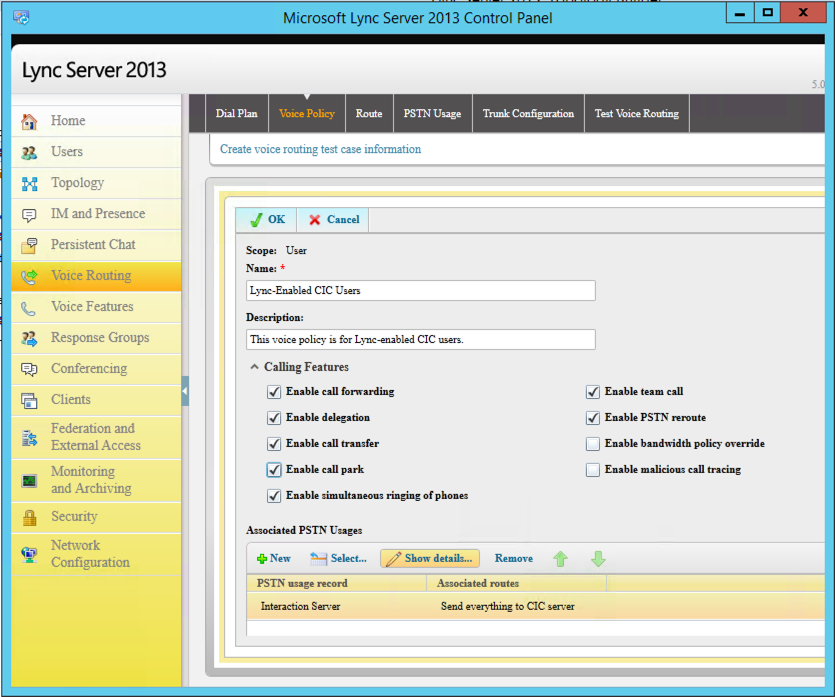
-
Under Associated PSTN Usages, click New.
The PSTN usage record identifies a class of calls (internal, local, or long distance) that the specified users can make. This record is associated with the voice policy you are creating.
-
In the Name box, specify a name for the usage record (for example, IC Server).
-
Under Associated Routes, click New to create a new route to the CIC server.
The New Route dialog box appears.
-
In the Name field, specify a name for the voice route.
-
In the Description field, specify a description. This description is optional.
-
In the Build a Pattern to Match section, in Match this pattern, specify which dialed number patterns should be routed to the CIC server through the mediation server you configured in the previous section.
The value to specify in the regular expression field should match the format string in the Interaction Administrator Lync Line URI configuration. For more information about the Lync Line URI, see Interaction Administrator Help.
-
Under Associated trunks, click Add and select the CIC server to associate with the voice route.
-
Click OK to return to the New PSTN Usage Record dialog box.
-
Click OK to return to the New Voice Policy dialog box.
-
Click OK to save the voice policy.
-
Click Commit. Click Commit All to publish the configuration changes.