

- Contents
TTS Engines Technical Reference
Add voices and languages for SAPI
You can choose to write custom applications for multiple voices and languages by creating a voice name parameter for each voice and then making the necessary handler modifications to use these SAPI voice name parameters.
If you downloaded and installed Microsoft Speech Runtime Platform on the CIC server and want to add additional voices that it provides, you must define the voices in Interaction Administrator and reference the Registry location where the tokens are located. The base Registry path for the Microsoft Speech Runtime Platform voices is as follows:
    HKEY_LOCAL_MACHINE
     \SOFTWARE
      \Wow6432Node
       \Microsoft
        \Speech Server
         \v11.0
          \Voices
           \Tokens
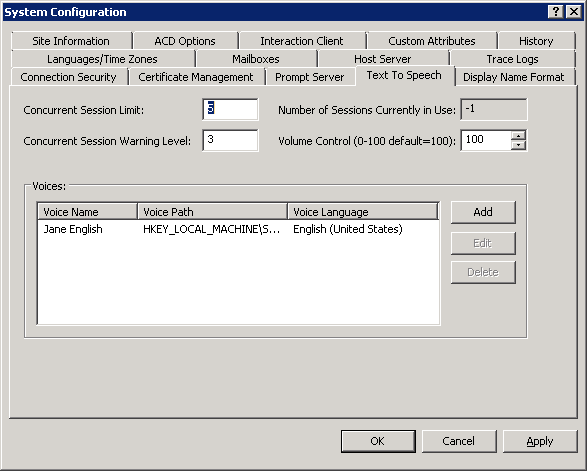
Using the Text To Speech tab of the System Configuration dialog box in Interaction Administrator, you can add multiple voices and languages. You can add an unlimited number of voices; however, you can associate each language to only one voice. Voice configuration settings on this page override the voice configuration settings in the Windows Speech applet.
After defining the voice, you can pass the voice name parameter (for example, “Jane English”) to the TTS-defined tool.
To add a voice for a language, do the following steps:
-
Open Interaction Administrator and log on with administrator credentials.
-
In the left pane of the Interaction Administrator window, select the System Configuration container.
-
In the right pane of the Interaction Administrator window, double-click Configuration.
The System Configuration dialog box appears.
-
Select the Text To Speech tab of the System Configuration dialog box.
-
On the Text to Speech tab, select the Add button.
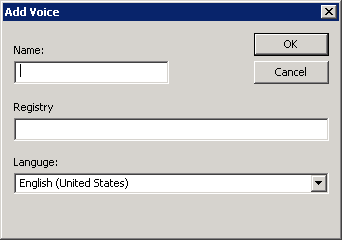
The Add Voice dialog box appears.
-
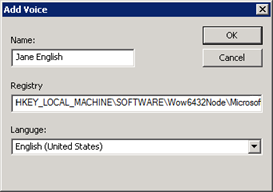
In the Name box, enter the name that you want to assign to the voice.
-
In the Registry box, enter the registry path to the voice token.
-
In the Language list, select the language in which the voice is spoken.
-
Click OK.
The voice now appears in the Voices panel on the Text to Speech tab.