


- Contents
PureConnect Licensing Technical Reference
Allocate Licenses When Adding a User
The Licensing tab in the User Configuration dialog box allows you to allocate licenses when adding a user. For more information, see the Interaction Administrator Help at https://help.genesys.com/cic/mergedProjects/wh_ia/desktop/interaction_administrator_help.htm.
To allocate licenses when adding a user
-
In the People container, click the Users subcontainer and then press the Insert key.
-
Specify a user name and then click OK. The User Configuration dialog box appears.
-
Configure the user and then click OK.
-
Click the Licensing tab.
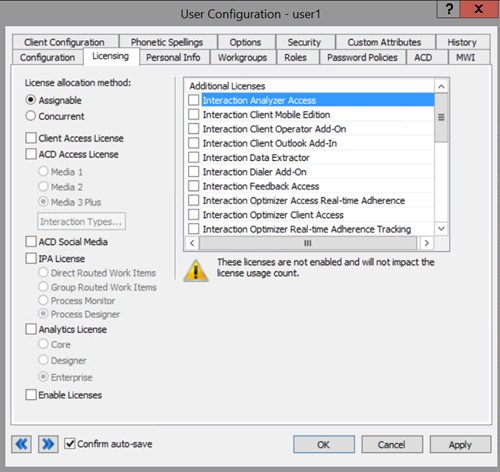
License allocation method:
Assignable: If selected, the system requires Assignable user and station licenses immediately upon allocation.
Concurrent: If selected, the system requires Concurrent user licenses as needed.
Client Access License: If selected, allocates a Client Access license to the user to allow the user to run an instance of the CIC client software. Without this license allocation, the CIC client cannot run on the station.
ACD Access License: If selected, allocates an ACD Access license to the user. Failure to have an ACD Access license allocated to a station prevents the station from being active in ACD calls.
Media 1: Allows one interaction type at a specified time.
Media 2: Allows two interaction types at a specified time.
Media 3 Plus: Allows three or more interactions at a specified time. Valid Interaction Types are: Call/Callback, Chat, Email, and Generic.
ACD Social Media: If selected, allocates an ACD Social Media license to the user to allow the user to receive routed social media interactions.
IPA License: If selected, allocates an IPA license to the user. The following license types are available:
Direct Routing Work Items:
(I3_ACCESS_IPA_USER) If selected, allows the user to start
any process to which the user has rights. It also allows the user to receive
Work Items that route to them directly.
Group Routed Work Item: (I3_ACCESS_IPA_USER_ACD)
If selected, allows the user to receive Work Items that either route to
them directly or to a workgroup (similar to an ACD queue.)
Process Monitor: (I3_ACCESS_IPA_MONITOR)
If selected, allows the user to view process status and details in the
Process Monitor or to use Process Reporting in IC Business Manager applications.
Process Designer: (I3_ACCESS_IPA_DESIGNER)
If selected, allows the user to use the Process Designer to create and
modify Interaction Process Automation processes.
Analytics License: If selected, allocates an Analytics license to the user. The following licensing tiers are available:
Core: (I3_ACCESS_ANALYTICS_CORE) If selected, allows the user to log on and view dashboards.
Designer: (I3_ACCESS_ANALYTICS_DESIGNER) If selected, allows the user to log on; and view, create, and edit dashboards.
Enterprise: (I3_ACCESS_ANALYTICS_ENTERPRISE) If selected, allows the user to log on; view, create, and edit dashboards; and merge in external data sources.
Enable Licenses: If selected, activates the license settings. If cleared, the system ignores the license settings in this dialog box. This option allows you to turn off licensing for a station, but keep the license settings.
Additional Licenses: If selected, allocates the license to the station. Only purchased licenses display in the list box.
-
Complete the information and then click OK.