- Contents
Interactive Update Technical Reference
Interactive Update Client application: How updates are applied
The Interactive Update Client application displays different icons, messages, and dialogs, depending on how Interactive Update has been configured to download and apply updates to the CIC server or client machine.
Starting with Interactive Update 2016 R2, Interactive Update will attempt to shut down client applications before updating.
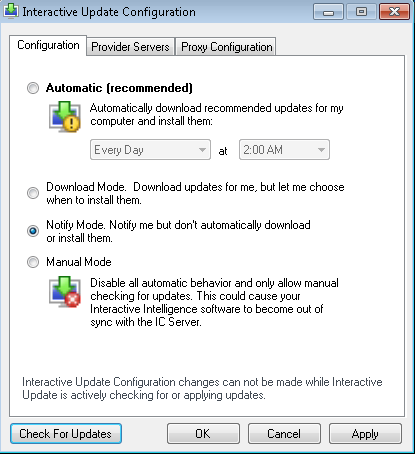
As an example, the following procedure shows what the Interactive Update Client application on a client machine displays when the Interactive Update Client Configuration is set to Notify Mode.
-
Click Check for Updates at the bottom of the Interactive Update Client Configuration dialog.
-
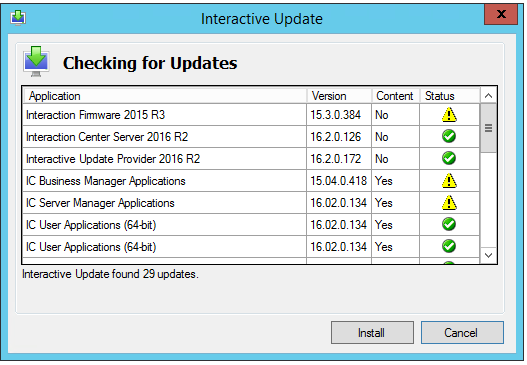
The Checking for Updates dialog appears starting with Interactive Update 2015 R3. This dialog displays messages to indicate the steps that Interactive Update executes to check for updates and a final message to indicate the number of updates available or the software is up to date. This dialog displays a list of applications currently installed. In the Status column, a:
-
 Indicates
that the application is up to date.
Indicates
that the application is up to date. -
 Indicates
that an update is available for the application.
Indicates
that an update is available for the application.
-
-
Click Install.
-
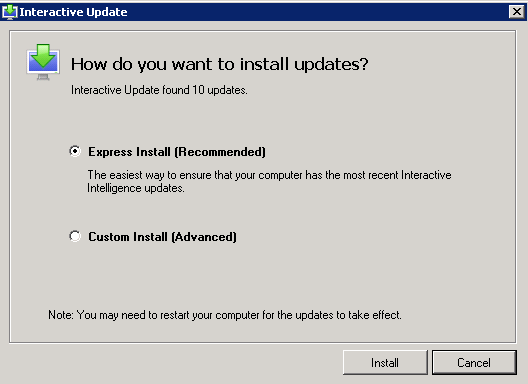
The Interactive Update Client application prompts for the type of install — Express (default) or Custom — available to install. In this example, Express is selected. Click Install.
-
The Interactive Update Client application lists the updates available to install. Click Install.
-
If you chose Express Install, you are notified when Interactive Update has finished applying the updates.
-
If you chose Custom Install, you are prompted to choose the updates to apply, for example:
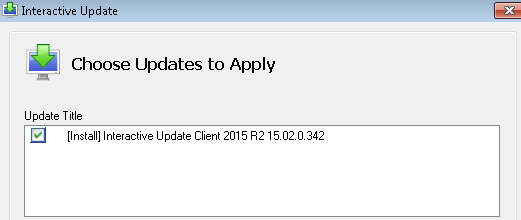
Starting with Interactive Update 2015 R1, the update version number is displayed to aid in identifying the correct updates to apply.
-
-
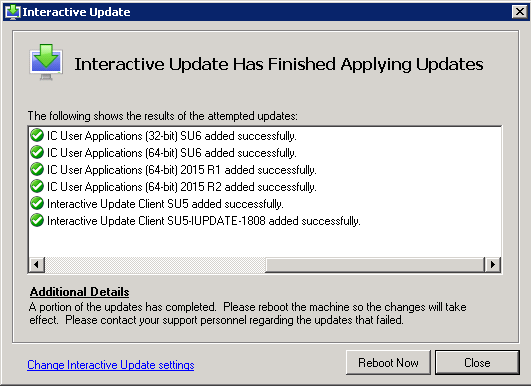
The Interactive Update Client application indicates the installation was completed and successful. Click Close to exit the Interactive Update Client application.
Note:
-
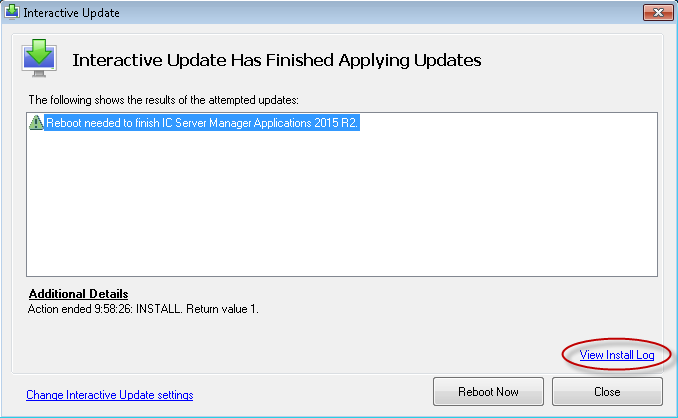
If the installation was not successful, view Additional Details for further actions to take, for example, restarting an application or restarting the machine.
-
Starting with Interactive Update 2.0 SU 5, the following two notifications may appear in this dialog:
-
 Appears
if an update is waiting for another update to complete or
if Interactive Update Client Configuration is in Download
Only mode.
Appears
if an update is waiting for another update to complete or
if Interactive Update Client Configuration is in Download
Only mode. -
Appears
if an update has locked files or needs a restart.
-
-
Starting with Interactive Update 2015 R3, you can view the Install Log to diagnose an issue that occurred during the installation of an update. To access the Install Log for an update, select an update and the View Install Log link appears. To view the log file, click the View Install Log link.