


- Contents
Interactive Update Technical Reference
Interactive Update Client task tray icon
Starting with Interactive Update 2.0 SU 5, the Interactive Update Client task tray icon has a right-click menu that displays a variety of options, depending on the current status of Interactive Update Client. For example:
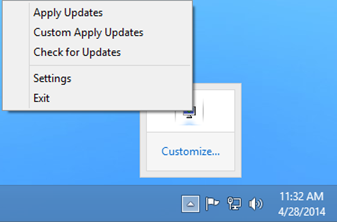
The following table describes the Interactive Update Client right-click menu options:
|
Option |
Occurs when… |
Description |
|---|---|---|
|
Apply Updates |
Interactive Update Client configuration is set to Download Mode. |
When updates are finished downloading, select this option to install the updates in the background. |
|
Custom Apply Updates |
Interactive Update Client configuration is set to Download Mode. |
When updates are finished downloading, select this option to choose the updates to install. |
|
Check for Updates |
No updates are available or are being applied. |
Select this option to manually check for updates. |
|
Cancel Updates |
Updates are being applied. |
Select this option to:
Note: |
|
Settings |
Always available. |
Select this option to display the Interactive Update Client configuration dialog. |
|
Exit |
Always available. |
Select this option to close the Interactive Update Client task tray icon. |
Double-click the task tray icon to open a dialog that relates to the last activity Interactive Update Client performed. For example, starting with Interactive Update 2016 R2 if a client machine requires a restart after an update, double-click the task tray icon and a dialog appears requesting that you restart to finish applying the updates.
Point to the task tray icon to display tooltips that indicate the status of Interactive Update Client. For example, after Interactive Updates finishes installing updates, the Successful Activation tooltip appears.