


- Contents
Latitude Help
Add a Payment to a POD Account
Use the Payment tab on the Account tab in the Payment Entry window to add a payment to a Particulars of Debt (POD) account. POD accounts use one or more entries (invoices) to indicate debt segments of principle balances.
To add a payment to a POD account
-
In the Main Menu window, from the Data Entry menu, click Debtor Payments. The Payment Entry window appears.
-
Do one of the following:
-
If you know the account number, do the steps to Retrieve an Account by Account Number.
-
To search for an account using simple search, do the steps to Search for an Account Using Simple Search.
-
To search for an account using advanced search, do the steps to Search for an Account Using Advanced Search.
The Account tab in the Payment Entry window appears.
-
Click the Payment tab. A POD data grid appears with invoices listed in date order from oldest to newest.
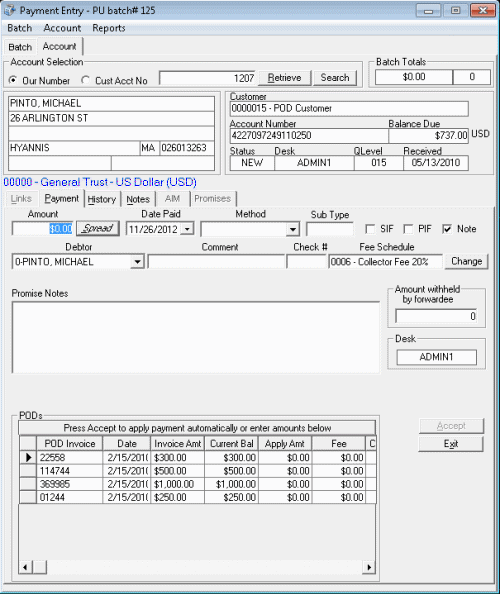
Amount: Payment amount received.
Date Paid: Defaults to the batch date. To change the date, click the arrow and select the date from the calendar.
Method: Payment method.
Sub Type: Optional code to categorize the batch type.
SIF: (Settled in Full) If selected, the payment is a settlement to the account.
PIF: (Paid in Full) If selected, the payment covers the entire balance and pays the account in full.
Note: If selected, the system creates a note when posting the payment.
Debtor: Defaults to primary debtor. You can select another debtor if one exists on the account.
Comment: More information regarding the payment or account.
Check #: Check number for a payment by check.
Fee Schedule: Fee schedule assigned to the account currently. If your permissions allow, you can use a different fee schedule for this payment. For more information, see Change Fees for a Single Payment.
Note: If you set the Free Demand Days option in Fee Schedule maintenance for the account, and the account age places it within the free demand period for the fee schedule, a message appears. The message indicates that the account is within the Free Demand Period and the system doesn't calculate fees.
Promise Notes: You can use promise notes for:
-
NSF accruals or to hold payment entry until verification of sufficient funds for a particular debtor.
-
Fee review for forwarded accounts.
-
Any miscellaneous account-specific information.
POD Invoice: POD invoice number.
Date: Date you generated the invoice.
Invoice Amount: Total dollar amount due on the invoice.
Current Bal: Current balance of the invoice.
Apply Amt: Dollar amount of the payment to apply to the invoice.
Fee: Dollar amount charged for fees on the invoice.
Customer Branch: Customer branch associated to the invoice.
Amount withheld by forwardee: Dollar amount of the payment that the Forwardee (for example, attorney) who collected the payment withheld. The system doesn't include this amount in the fees due to your agency.
Desk: Desk currently holding the account. If your permissions allow, you can change the desk so that you receive credit for the payment. For more information, see Change the Desk Assigned to an Account.
-
Complete the information and then click Spread to apply payments to the POD invoices in the order listed (oldest to newest).
-
Optionally, you can change the amounts in the Apply Amt and Fee Amount boxes in the data grid. If the payment amount is not equal to the sum of the amounts in the Apply column, a message displays in red. If the amount of the payment exceeds the balance owed, the overpayment amount displays in red under the Amount withheld by forwardee box. The system doesn't use this amount to calculate your agency’s fees, so invoice amounts to the customer are still correct.
-
When the sum of the amounts in the Apply column equals the payment amount, click Accept. The system applies the payment to the debtor's account and includes it in the current batch.