


- Contents
- Index
Log on to Credit Bureau Reporting Console
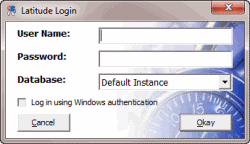
Use the Latitude Logon dialog box to log on to Credit Bureau Reporting Console.
To log on to Credit Bureau Reporting Console
-
Do one of the following:
-
From the Maintenance menu within Latitude, click Credit Bureau Reporting Console.
-
Open "\Program Files (x86)\Latitude Software\bin" and then double-click CbrConsole.
The Latitude Logon dialog box appears.
-
In the User Name box, type your Latitude user name.
-
In the Password box, type your Latitude password. As you type your password, periods display instead of the typed characters.
Note: Premises-based clients can use Windows authentication to bind Latitude users to their Windows identity to permit logging on to Latitude automatically. Windows authentication is not available for hosted clients. To log on using Windows authentication, select the Log in using Windows authentication check box and provide your Windows user name and password.
-
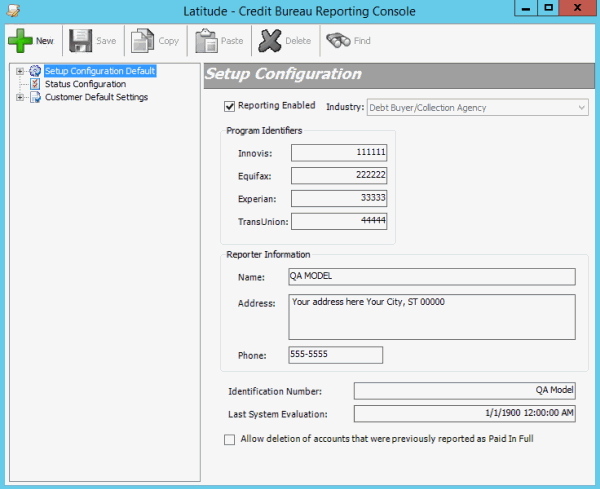
Click Okay. The Credit Bureau Reporting Console window appears.
Related Topics
Introduction to Credit Bureau Reporting Console