


- Contents
Maintain Dates Associated to an Account
Use the Account Date Information dialog box to maintain dates associated to an account.
To maintain dates associated to an account
-
With an account displayed in the Work Form, click in any of the date boxes (for example, Rcvd, Work) in the Date Info section. The Account Date Information dialog box appears.
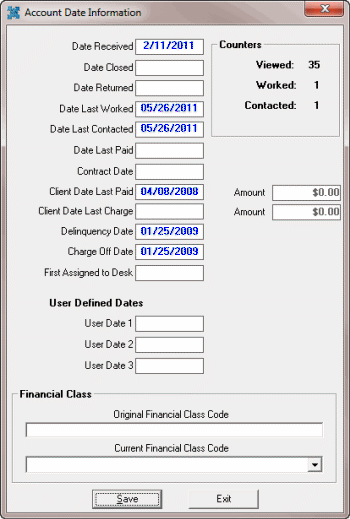
Date Received: Date your organization received the account.
Date Closed: Date your organization closed the account.
Date Returned: Date your organization returned the account to the customer.
Date Last Worked: Date a user last worked the account.
Date Last Contacted: Date a user last contacted the debtor.
Date Last Paid: Date your organization last received a payment.
Contract Date: Date the debtor started the debt with the customer.
Client Date Last Paid: Date the customer last received payment on the account.
Amount: (Client Date Last Paid Amount) Amount the customer last received on the account.
Client Date Last Charge: Date the customer last charged the account.
Amount: (Client Date last Charge Amount) Amount the customer last charged the account.
Delinquency Date: Date the account became delinquent.
Charge Off Date: Date the customer charged off the account.
First Assigned to Desk: Date a user first assigned the account to the desk.
User Date 1 through User Date 3: User-defined dates.
Viewed: Number of times users viewed the account.
Worked: Number of times users worked the account.
Contacted: Number of times users contacted the debtor about the account.
-
Complete the information and then click Save.
Related Topics
View Account Balance Information