


- Contents
View Post-Dated Payments for a Desk
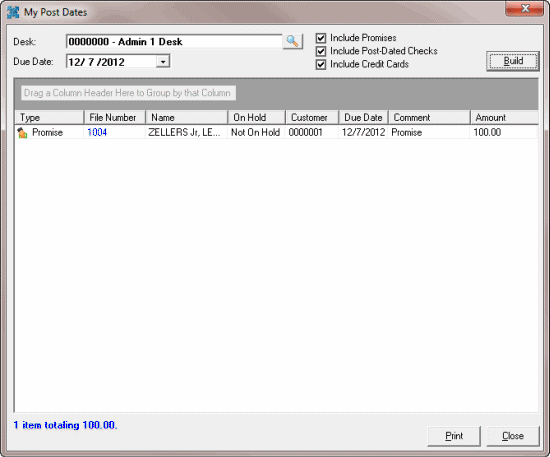
Use the My Post Dates window to view post-dated checks and promises for your desk that are due on a specific date. If you have the appropriate permissions, you can view post-dated payments for other desks.
To view post-dated payments for a desk
-
With an account displayed in the Work Form, from the Payments menu, click Show My Post Dates. The My Post Dates window appears.
-
If you have the appropriate permissions and you want to change the desk, see Change the Desk.
-
In the Due Date list box, click the date to display post-dated payments that are due before or on the date.
-
To include promises, select the Include Promises check box.
-
To include post-dated checks, select the Include Post-Dated Checks check box.
-
To include credit cards, select the Include Credit Cards check box.
-
Click Build. Post-dated payments for the selected due date and desk appear. Totals appear at the bottom of the window, along with information about payments that are on hold.
-
To print the information, click Print.
-
To display an account in the Work Form, in the File Number column, click the file number.