


- Contents
WorkFlow Designer Help
Raise an Event on an Account
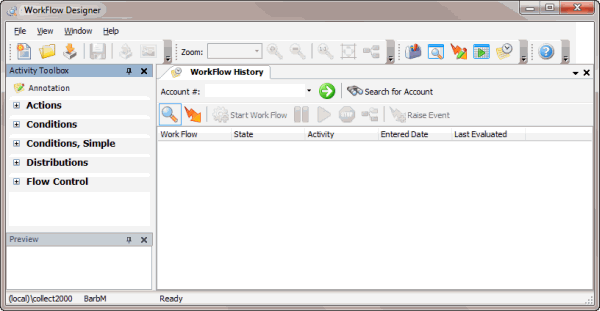
Use the WorkFlow History tab to raise an event on an account.
To raise an event on an account
-
From the Window toolbar, click the Workflow History icon
 .
The WorkFlow History tab appears.
.
The WorkFlow History tab appears.
-
Do one of the following:
-
If you know the account number, in the Account # box, type the account number and then click the Go icon
 .
. -
To search for an account, do the following:
-
-
Click Search for Account. The Search - Search for Account window appears.
-
Type search criteria into one or more boxes. For fewer results, provide more information. For more results, provide less information.
-
Click Search. The results display on the Search Results tab.
-
Double-click the account.
-
-
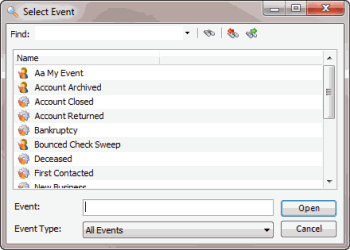
In the toolbar on the tab, click the Raise Event icon
 . The Select
Event dialog box appears.
. The Select
Event dialog box appears.
-
Click an event and then click Open.
-
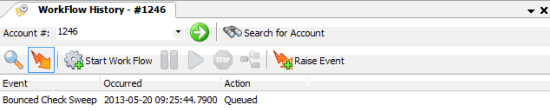
On the WorkFlow History tab, click the Events Raised icon
 .
The Events Raised page shows
that the event is queued for processing.
.
The Events Raised page shows
that the event is queued for processing.
-
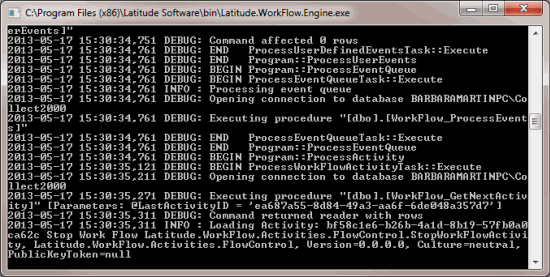
To run the event, open the "C:\Program Files (x86)\Interactive Intellilgence\Interaction Collector\bin" folder and double-click WorkFlow.Engine. The WorkFlow Engine begins processing the queued event.
-
When processing completes, on the Events Raised page, the event shows the workflow that started the event. The Workflow page shows that the workflow completed.