


- Contents
WorkFlow Designer Help
Stop a Workflow for an Account
Use the WorkFlow History tab to stop a workflow that started on an account. You cannot resume a stopped workflow. If you want the ability to resume a workflow, pause it instead of stopping it.
To stop a workflow for an account
-
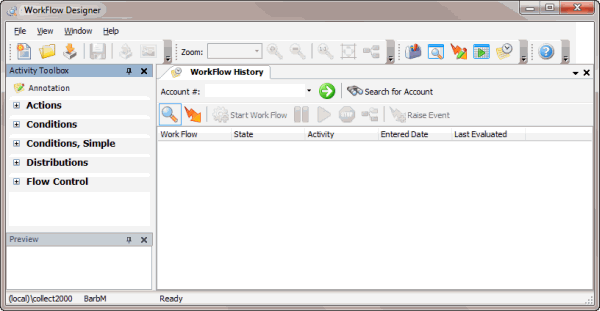
From the Window toolbar, click the Workflow History icon
 . The
WorkFlow History tab appears.
. The
WorkFlow History tab appears.
-
Do one of the following:
-
If you know the account number, in the Account # box, type the account number and then click the Go icon
 .
. -
To search for an account, do the following:
-
-
Click Search for Account. The Search - Search for Account window appears.
-
Type search criteria into one or more boxes. For fewer results, provide more information. For more results, provide less information.
-
Click Search. The results display on the Search Results tab.
-
Double-click the account.
-
-
Click the workflow to stop and then, in the toolbar on the tab, click the Stop icon
 .
A confirmation dialog box appears.
.
A confirmation dialog box appears. -
Click Yes. The WorkFlow Engine stops processing the account in the workflow and deletes the workflow from the Workflow page of the WorkFlow History tab.