


- Contents
Interaction Process Automation Designer Help
Defining a Web Service
Use the Web Service Settings dialog box (see figure) to define web services for your process.
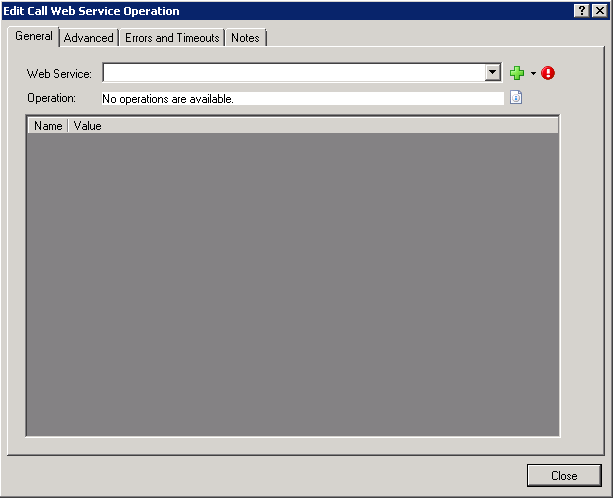
To define a web service:
-
Add or edit a Call Web Service action to display its dialog box:
- To the right of the Web Service drop-down, expand the list box and click Add (see figure).
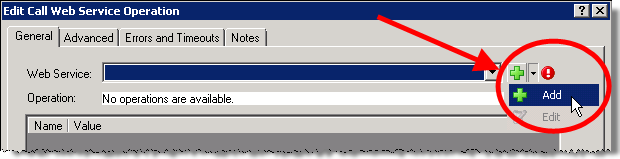
IPA Designer displays the Web Service Settings dialog box. In this dialog you enter information about the web service.
-
Enter basic information about the web service:
-
In the web service name text box, type the name of the web service.
Note that each web service in a process must have a unique name. A process cannot use multiple web service definitions that have the same name value. -
In the Wsdl text box, type the address for the web service’s Web Service Definition Language (WSDL).
If authentication is needed to obtain the WSDL, IPA Designer uses credentials from the Authentication section, such as http://myservice.com/myservice.svc or https://myservice.com/myservice.svc (for a secure web service).
IPA Designer will fill in the Service and Port blanks automatically after it completes a test connection to the URL and retrieves that information from the web service.
-
Note: The Advanced tab in the Edit Call Web Service dialog can dynamically specify a different URL.
-
Enter the domain, user ID, and password for connecting to the web service:
-
In the Domain text box, type the domain to use for the web service.
-
In the User name and Password text boxes, type the user ID and password for logon.
IPA Designer uses the domain, user name, and password at design time when fetching a web service’s WSDL. PAS also uses them at runtime to call the web service.
-
-
Under Select the allowable authentication modes at runtime, select one or more check boxes for the authentication modes (NTLM, Digest, or Basic) to use with the web service.
These specify which types of authentication PAS can use at runtime when executing a Call Web Service action that uses this web service. -
For secure web services (those whose URLs begin with https://), select the Validate server certificate at runtime check box.
Note that if the web server's certificate is expired or is not signed by a certificate authority that PAS allows, then the process goes into error and stops at that point.
Note: If PAS does not allow a web server's certificate authority, contact your CIC administrator and/or refer to the Interaction Process Automation Technical Reference's section on "Adding a Certification Authority to Process Automation Server."
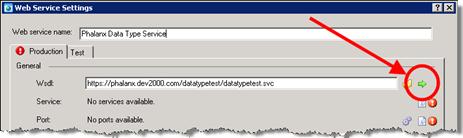
As soon as you finish entering information, the dialog box displays a green arrow icon (see figure) to run a test connection to the web service.
-
To connect to the web service and fetch its WSDL, click the green arrow icon.
IPA Designer connects to the web service. It displays available services and ports, and changes the green arrow icon to a refresh icon. The gear ( ) icon next to each port displays the available web services for that port.
Note: If the web service contains ports that use unsupported bindings, IPA Designer will display a message box listing the unsupported ports and bindings.
-
(Optional) To specify a web service that IPA Designer calls when running the process in Test mode:
-
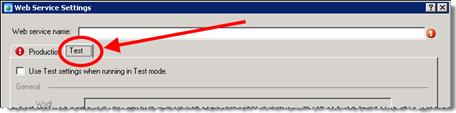
Click the Test tab to display it (see figure).
-
Select the Use Test settings when running in Test mode check box.
-
Fill in the web service information in the same way as on the Production tab.
-
Note: If you fill in the Test tab, IPA Designer assumes that the test web service has the same services, ports and operations as the one on the Production tab. This is important because if the web service on the Test tab is different, the process might fail at run time because testing only checked the Test web service, not the one that the process will actually call in production.
-
Click OK.
IPA Designer re-displays the Call Web Service dialog box. This time, the dialog includes information about the web service.