


- Contents
Interaction Process Automation Designer Help
The Function Assistant Wizard
IPA Designer displays the Function Assistant wizard (see figure) when you click the Add Function button in the toolbar of the Custom Calculation Builder dialog box.
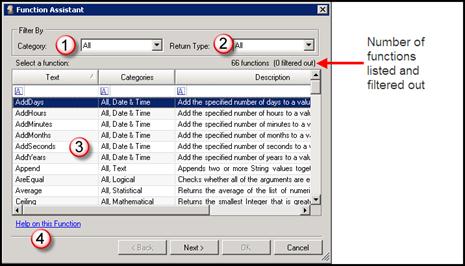
The Function Assistant wizard is a rich and flexible tool that walks you through the process of adding a function to your custom calculation. When you select a function in the list (3) and click the Next button, the wizard displays a dialog box that lets you enter values and parameters for the specific function you selected. Notable features of the initial dialog box (see figure, above) are:
-
Category list box (1): Lets you select the category of function you want to see in the list (3).
-
Return type list box (2): Lets you select the return type of functions that you want to see in the list (3), such as Integer or String.
-
Function list (3): Displays either all available functions or a subset of those functions based on your selections in the Category and Return Type lists.
-
Help on this function (4): Displays reference information about the function currently selected in the list.
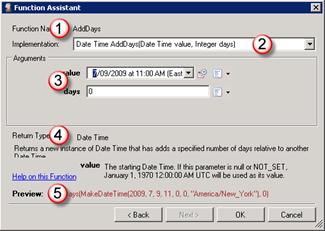
The second dialog of the Function Assistant wizard (see figure) is different for every function. However, it does have some features that are displayed for all functions:
-
Function Name (1): The name of the function.
-
Implementation (2): The function header, including return type, name, and parameter list.
-
Arguments (3): Values that you want to pass to the function. Note that each parameter in the parameter list has a matching field in this section.
-
Return Type (4): The data type of the value returned by the function. This section also gives a brief explanation of the function's return value and has a link to function help.
-
Preview (5): Shows the function as it will appear in your process with the values you added.